
 (1 votes, average: 5.00 out of 5)
 Loading...
By Nolan Haims
Photoshop and Illustrator are forever open on my computer, and yet I am a big proponent of doing as much design as possible directly in PowerPoint. Very often, adding an effect or editing an image in PowerPoint is actually quicker than doing the same in Photoshop. And even more importantly, effects created natively in PowerPoint are almost always non-destructive, which means adjustments are far easier as presentation content continually shifts (because it always does…)
Gradient Boxes
One of my favorite techniques in PowerPoint is to place a semi-transparent gradient box over full-page imagery. This is a way of “editing” the photo to make it fade out on an edge or to reduce the opacity over a part of the image and to allow for the placement of text on top of it.
The slide below uses a great image, but the text is hard to read because of low-contrast with the background. We can fix this with a gradient box.

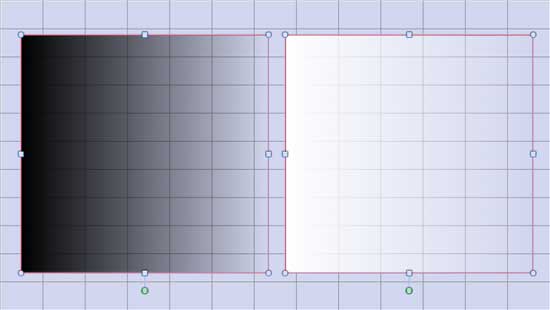
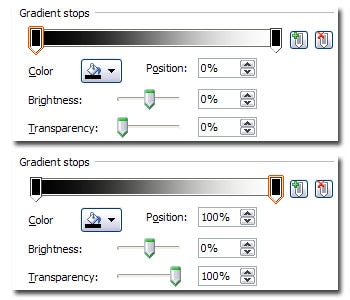
To create a gradient box, first create a rectangular shape, then go to fill options. Select “gradient” and set one end of the gradient to black. Set the other end to black as well, but here reduce the opacity to 0%. You now have a box that fades from 100% black to completely transparent. Align and fit the 100% edge of the box to an edge of the page. Then simply experiment with how far into the image you need to stretch the box for your desired effect. As text changes on your slide, you can continually update the gradient as needed.
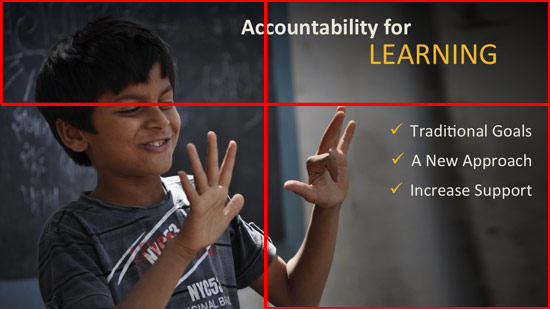
The slide below uses two gradient boxes: one aligned to the top and one aligned to the right.

The slide below outlines those boxes in red for clarity.
You can also use gradient boxes filled with white for a similar effect. I like using this technique for print-only presentations that generally should have a white background.

Adding a vignette effect to an image — especially a full-page image — is a simple technique for adding depth to an image and helping it “pop.” It’s an old technique, but one experiencing a stylistic revival in design these days. A vignette is simply a subtle shadow on the edges of an image that draws the eye to the center of the image and gives the image more dimension. Explore these sample slides — the slide on the top has the photo inserted as is, while the slide on the bottom has the vignette effect applied on top of the image in PowerPoint.


You can actually use four black gradient boxes on each side of a slide to create a vignette, but this is a case where I actually do turn to Photoshop. I’ve created a transparent .PNG image of a vignette effect in Photoshop that I simply drop onto images. In fact, these days I use it on nearly every full-page image I have in a presentation.

Note that you can approximate this standalone vignette using a PowerPoint shape with a from-center gradient applied, but because of how Microsoft applies the gradient, I don’t feel as though you get a very good result. You can download a copy of my vignette .PNG here.
Cautions
Be aware that any type of transparency in PowerPoint can lead to problems with printing. Some printers and some print drivers can’t truly interpret transparency, resulting in prints that are half-toned. In some cases, a printer won’t print any part of a page that contains transparency. If you find yourself with this problem, you can try updating your print drivers, sending to another printer, or creating a PDF and then printing from that. In the most extreme cases, you may have to turn the transparency or the entire page into a single flattened image by copying (Ctrl + C or ⌘ + C) and pasting special (Ctrl + Alt + V or ⌘ + Ctrl + V) as a .PNG image. If you do this, save a copy of the live transparency off on the pasteboard just in case you need to make future edits.

After careers in theatre and the circus, Nolan Haims moved into the world of presentation, designing presentations for Fortune 500 CEOs, leading financial institutions and all the major television networks. Currently Nolan is Presentation Director for Edelman, the world’s largest independent PR company. He writes about visual communication at Present Your Story.
You May Also Like: Letting Go of the PowerPoint Template
The views and opinions expressed in this blog post or content are those of the authors or the interviewees and do not necessarily reflect the official policy or position of any other agency, organization, employer, or company.
Related Posts
 By Nolan HaimsTell me if this situation sounds familiar...You’ve engaged a presentation designer for an important pitch (or you’re that designer being...
 By Kurt Dupont and Geetesh BajajPowerPoint, Microsoft's famous presentation software, is used everywhere—in offices, schools, and just about any place...
 By Kurt DupontData and report are the two words you are well accustomed to, even though you may or may not have to deal with them every day. But in ca...
 By Kurt Dupont What is Multiscreen Digital Signage? Multiscreen digital signage is when you have your messages or any other content shown on more than...
Thanks for this – especially for sharing the download. Very useful. I always thought PowerPoint should be able to let us do these thing directly to images, but this works well.
Nolan, this is incredible! Thank you so very much for your brilliance and your generosity!
Thank you, Nolan, for the transparent vignette you allowed to be downloaded.
I tried it on all the slides of a presentation I am preparing and it looks awesome. Thanks for your generosity! Maria