
We have explored how you can apply or change bulleted text within your text objects. By default, the actual bullet is always placed before the text that follows it. Also, there is no absolute position of any bullet you see on your slides — the bullet’s position is always relative to the position of the text object within which it is contained — and also how you adjust the spacing between the bullets and the text that follows. Most of the time, these default attributes work very well indeed — and you need not alter any parameters. But if you ever tried changing these parameters to alter the spacing for bullets, you might have discovered that these settings are not too intuitive, and can drive you crazy. In this tutorial, let us start with learning about the different interface parts that influence the position of the bullets.

Related Posts
 Have you ever been in a situation where your presentation looked so awesome with some amazing typography, but when you opened the same presentation on...
 There is no built-in tool for highlighting text in PowerPoint 2010. However, there is a workaround to highlight your PowerPoint text using the Text Hi...
 As of now, no PowerPoint version supports text highlighting as a feature you can add to selected text. And, before we explore a workaround to overcome...
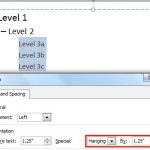 When your text paragraphs comprise multiple bulleted levels, indentation becomes a must to make your text look consistent and clear. Indent Markers vi...