
When working with multiple slide objects, you should have a visual cue about where you are placing slide objects. You can get exact coordinates of your slide objects using the positioning options in PowerPoint — but most of the time, you just need an approximate idea of where your objects are placed — and this can be easily obtained by using the Rulers available option in PowerPoint. By default, the Rulers may not visible, but when made visible — they are located on the top and left parts of the active slide.
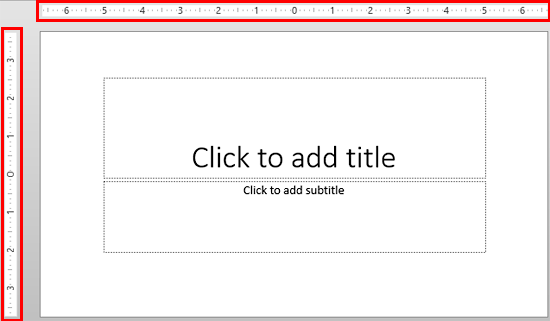
Learn about viewing and using Rulers in PowerPoint 2013 for Windows.
Related Posts
 Microsoft Office 2013 for Windows was released on October 11, 2012. It is the successor of the previous version, Office 2010, and among the most used ...
 Do you want to add an infinity symbol on your slide? Or do you want to add one of the mathematical symbols? Or even the Yen or Rupee symbols? PowerPoi...
 Text is an important element in your PowerPoint slides, and most of the time, text alignment is taken care by the defaults set in your presentation te...
 While you can open and save files from any file location you access on your computer or network, you can also add more places from where you can open ...