
Imagine this scenario: you place a text box on your slide — then you change the color of the font, reduce or increase the font size, set autofit options, tweak the margins, etc. At this point of time you are happy with your settings. Then you add another text box in the next slide — and you realize that this new text box needs to look the same as the text box you created earlier! No — you do not have to change all settings again — there are two ways of making the new text box possess the same settings as the older one.

Learn how to set a formatted text box as your default text box in PowerPoint 2013 for Windows.
Related Posts
 Text is an important element in your PowerPoint slides, and most of the time, text alignment is taken care by the defaults set in your presentation te...
 Are you stuck with a presentation that uses strange fonts? Or have you inherited slides where you need to change fonts globally? Fortunately, you don’...
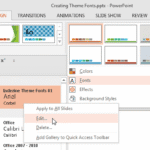 Theme Fonts comprise a pair of font choices, one each for your slide titles (Heading font) and the other for everything else on your slides (Body font...
 Unlike slides which are primarily presented through a display device such as a monitor, TV screen, or projector, the Notes and Handouts in PowerPoint ...