
After learning how to add different fills for shapes in PowerPoint 2013, now its time to learn how to remove any fill from a shape so that your shape only has an outline without a fill. Whenever you insert a new shape into a PowerPoint slide, it is filled with a solid color by default (or the default fill may be different depending on the Theme applied to your presentation). Most of the time, you may leave that unaltered, but there are times you want just the outline to be visible. It is in scenarios like these where it can be useful to learn how to remove any fill.

Remove fill from shapes in PowerPoint 2013 for Windows.
Related Posts
 PowerPoint's fill, line, and effect attributes enable you to customize the look of shapes and other slide objects in your presentation. However, it ma...
 Shape fills such as solid colors, gradients, pictures, and textures can have a transparency attribute that lets you reduce the opacity of a fill so th...
 You have already learned how to add different fills for shapes. Just like the Pattern fill option, there is one more hidden shape fill option which yo...
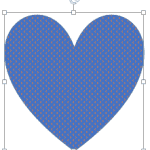 Pattern fills for shapes are two-color designs comprising lines, dots, dashes and checks. PowerPoint includes 48 patterns such patterns with names lik...