
PowerPoint 2010’s Format Painter option does an absolutely amazing job of copying all the formatting attributes from one slide object to another. For instance, you can copy all attributes of a shape (and even the text that the shape contains) to another shape, text box, or even a text placeholder. However, this is an all-or-nothing option. Sometimes, you may want to just copy the text formatting attributes, without copying the shape fill or any of the other shape attributes. This can be even more confusing when the text itself is formatted in more than one style. Selecting the entire text box, and then copying its attributes to another text box using the Format Painter will never replicate two text styles — so clearly there has to be a better way! We explain the better way in this tutorial — read further to understand.

Related Posts
 Have you ever been in a situation where your presentation looked so awesome with some amazing typography, but when you opened the same presentation on...
 There is no built-in tool for highlighting text in PowerPoint 2010. However, there is a workaround to highlight your PowerPoint text using the Text Hi...
 As of now, no PowerPoint version supports text highlighting as a feature you can add to selected text. And, before we explore a workaround to overcome...
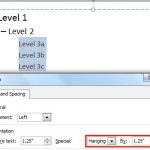 When your text paragraphs comprise multiple bulleted levels, indentation becomes a must to make your text look consistent and clear. Indent Markers vi...