
PowerPoint 2010 provides you with umpteen options to change the appearance of your bullet points — you can change the bullet styles, format the bullet size and its color, and use pictures as bullets. In addition, you can use a character from any font, including dingbats as a bullet. Dingbats are fonts which contain decorative symbols rather than alphabets and numbers. Wingdings is a good example of a dingbats font since it is installed by default on all computers.
Learn how to use dingbats and other characters as bullets in PowerPoint 2010 for Windows.
Related Posts
 Have you ever been in a situation where your presentation looked so awesome with some amazing typography, but when you opened the same presentation on...
 There is no built-in tool for highlighting text in PowerPoint 2010. However, there is a workaround to highlight your PowerPoint text using the Text Hi...
 As of now, no PowerPoint version supports text highlighting as a feature you can add to selected text. And, before we explore a workaround to overcome...
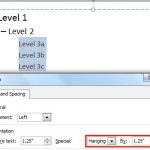 When your text paragraphs comprise multiple bulleted levels, indentation becomes a must to make your text look consistent and clear. Indent Markers vi...