
This is the print version of this page. All content is copyright Indezine.com 2000-2026.
Thoughts and impressions of happenings in the world of PowerPoint and presentations, continuously updated since 2003.
See Also:
PowerPoint and Presenting Notes
PowerPoint and Presenting Glossary
By Kurt Dupont
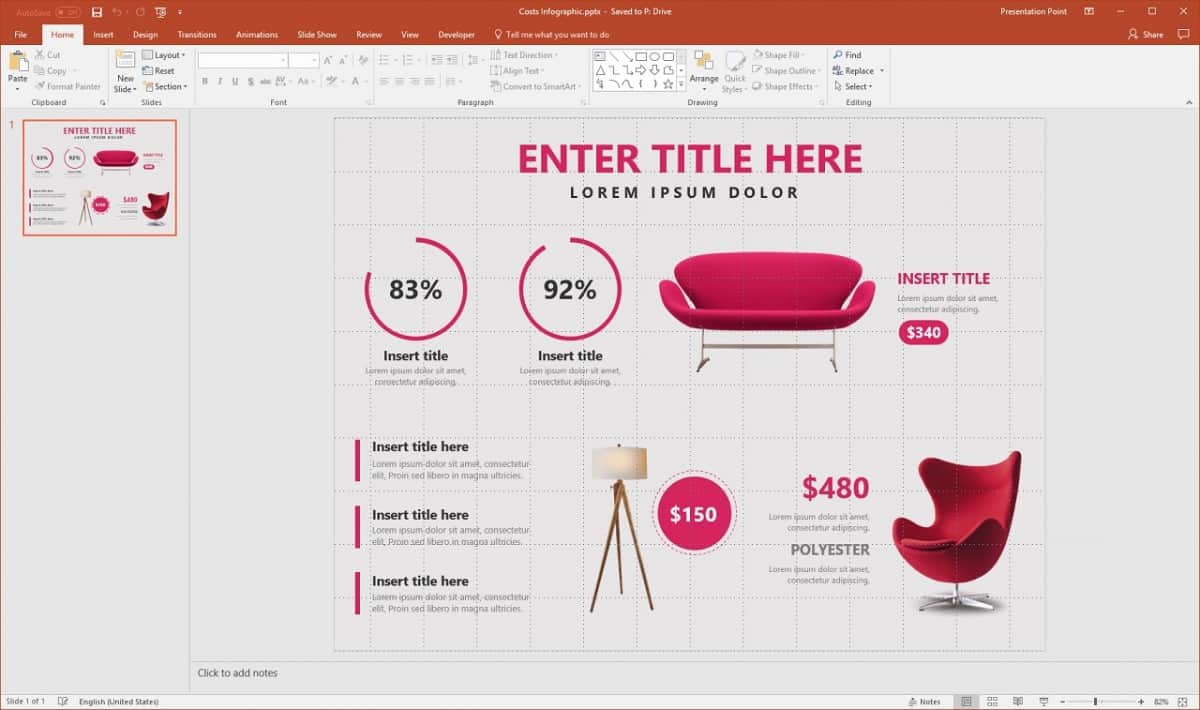
PowerPoint is a very resourceful tool that can help businesses achieve more. Unfortunately, there are several possibilities within PowerPoint that people don’t know. The only thing that people know is how to design the presentations, but they don’t know they can use certain tools to better enhance those presentations and achieve more. Some people will complain how they hate PowerPoint and others say that PowerPoint does not help them in achieving what they want. Here are some of the three things that you need to know about PowerPoint that will help you learn how to use PowerPoint in more resourceful ways.
Filed Under:
Guest Posts
Tagged as: Add-in, Case Studies, DataPoint, Guest Post, Kurt Dupont, PowerPoint, PresentationPoint
Comments Off on How to Use PowerPoint Differently: 3 Unique Use Cases
If you have worked aplenty with text in PowerPoint, you must be aware that you cannot rotate text within a shape by 180°. What’s surprising is that you can rotate text by 90° and 270° within a shape, but not by 180°! But why would you need upside-down text that is rotated 180°? Many users do need this upside-down text to explain advanced concepts.

Learn how to rotate text 180° within a shape in PowerPoint 2016 for Mac.
Filed Under:
PowerPoint 2016
Tagged as: Mac, Office 2016, Office for Mac, PowerPoint 2016, PowerPoint for Mac, Rotate, Text, Tutorials
Comments Off on Rotate Text 180° within Shapes in PowerPoint 2016 for Mac
We first feature John Auckland, who shares his experience of successfully funding around 50 companies, to share with you, 5 Steps to Creating a Killer Pitch Deck When Raising Funds. Nigel Holmes, a celebrated illustrator talks about his new book, Crazy Competitions: 100 Weird and Wonderful Rituals from Around the World. If you explore through the pages of his book, you will discover so many ideas on how you can make illustrations work better for you in PowerPoint. Even if you don’t use the inspiration in PowerPoint, the book is an amazing read and watch! We then feature Ken Molay, who shares Top 5 Tips For Remote Presentation Design. This is a must-read if you deliver webinars. Finally, we did not find a list of common double-byte fonts anywhere, and with so many requests pouring in, we decided to create a list on our own.
PowerPoint 2016 for Windows can explore the many Views in the program. PowerPoint 2013 for Windows can learn how to Insert Symbols. PowerPoint 2016 for Mac users can learn about Manipulating Shapes by Dragging Yellow Handles, and Text Alignment. And if that wasn’t enough for this week, make sure you do not miss the quotes, press releases, and templates released in the last week.
Stay informed about updated tutorials and happenings related to PowerPoint and presenting.
Filed Under:
Ezine
Tagged as: Ezine, Indezine, News, PowerPoint
Comments Off on PowerPoint and Presenting News: December 4, 2018
Do you want to create a pentagon-shaped table? Even better, don’t you want to use a process that not only makes the table completely editable, but which ends up with a particular shape? We are going to use two PowerPoint techniques to achieve this trick.
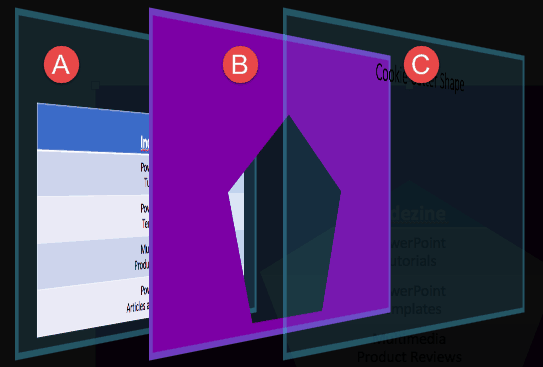
Learn how to make cookie cutter shapes in PowerPoint 2016 for Mac.
Filed Under:
PowerPoint 2016
Tagged as: Combine, Cookie Cutter, Fills, Mac, Office 2016, Office for Mac, PowerPoint 2016, PowerPoint for Mac, Shapes, Slide Background Fill, Tutorials
Comments Off on Cookie Cutter Shapes in PowerPoint 2016 for Mac
You may want to quickly add an em dash within your text container—be it a placeholder, text box, shape, or even a table. It’s very easy to add an em dash, and there is more than one way to achieve this task, although there may be some differences, and all ways may not work in the version of PowerPoint you are using. But certainly, using one of these options, you will be able to add an em dash in PowerPoint for Mac.

Learn how you can insert an em dash in PowerPoint for Mac.
Filed Under:
PowerPoint All Versions
Tagged as: Em Dash, Mac, Office for Mac, PowerPoint, PowerPoint for Mac, Tutorials
Comments Off on Add an Em Dash in PowerPoint for Mac
Microsoft and the Office logo are trademarks or registered trademarks of Microsoft Corporation in the United States and/or other countries.
