
This is the print version of this page. All content is copyright Indezine.com 2000-2026.
Thoughts and impressions of happenings in the world of PowerPoint and presentations, continuously updated since 2003.
See Also:
PowerPoint and Presenting Notes
PowerPoint and Presenting Glossary
Keys not only open locks, but also symbolize solutions to complex algorithms, unscramble code, and also many of life’s problems! This second set of keys includes not one or two, but ten variations of key graphics that look contemporary.

Download and use these key graphics.
Filed Under:
Presentation Bank
Tagged as: Design, Graphics, PowerPoint, Presentation Samples
Comments Off on Key Graphics for PowerPoint (02 Contemporary Keys)
There is no built-in tool for highlighting text in PowerPoint 2010. However, there is a workaround to highlight your PowerPoint text using the Text Highlight Color within Microsoft Word. Now, if you come across a situation where you have number of slides and you need to similarly highlight more text. Working repeatedly with Word for all text highlighting across so many slides will be time consuming. Fortunately, you can tackle this issue easily by using Format Painter within PowerPoint, which lets you copy the text highlight and also helps in removing the highlight altogether.

Learn how to copy and remove highlighting for text in PowerPoint 2010 for Windows.
Filed Under:
PowerPoint 2010
Tagged as: PowerPoint 2010, Text, Tutorials
Comments Off on Learn PowerPoint 2010 for Windows: Copy and Remove Highlighting for Text
Often, you may receive some content for your presentation from someone. And rather than typing all that content, you may just copy it from an email or a document, and paste it within PowerPoint. The problem with this approach may stem from the fact that whoever sent you the content is one of those people who type everything in small case — or maybe they just turn on the Caps Lock button and forget turning it off! Whatever the reason may be, you will end up with text that is certainly not usable on your slide. Rather than retyping the whole text again, you can use PowerPoint 2013’s Change Case option to quickly change the case of selected text on your slide.

Learn how to change text case to lowercase, uppercase, etc. in PowerPoint 2013 for Windows.
Filed Under:
PowerPoint 2013
Tagged as: PowerPoint 2013, Text, Tutorials
Comments Off on Learn PowerPoint 2013 for Windows: Change Text Case
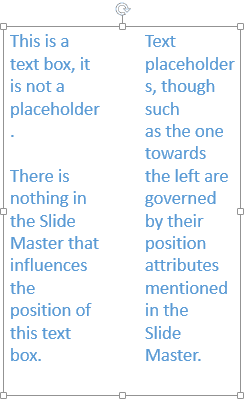
Columned text layouts are often seen in documents created within word processing programs such as Microsoft Word. Nevertheless, PowerPoint gives you some basic column capabilities, although you should not expect anything close to the controls provided by Word. In PowerPoint, you can set up a text container to possess multiple linked columns.
Filed Under:
PowerPoint 2013
Tagged as: PowerPoint 2013, Text, Tutorials
Comments Off on Learn PowerPoint 2013 for Windows: Columns Within Text Boxes
As of now, no PowerPoint version supports text highlighting as a feature you can add to selected text. And, before we explore a workaround to overcome this limitation, let’s look into the necessities of highlighting text. If you want to emphasize some important words within your slide, then highlighting indeed helps. However, PowerPoint doesn’t have a ready-made tool to highlight text as there is in Microsoft Word – but you can use Word’s text highlight as a workaround!

Learn how to highlight text in PowerPoint 2010 for Windows.
Filed Under:
PowerPoint 2010
Tagged as: PowerPoint 2010, Text, Tutorials
Comments Off on Learn PowerPoint 2010 for Windows: Highlight Text
Microsoft and the Office logo are trademarks or registered trademarks of Microsoft Corporation in the United States and/or other countries.