
This is the print version of this page. All content is copyright Indezine.com 2000-2026.
Thoughts and impressions of happenings in the world of PowerPoint and presentations, continuously updated since 2003.
See Also:
PowerPoint and Presenting Notes
PowerPoint and Presenting Glossary
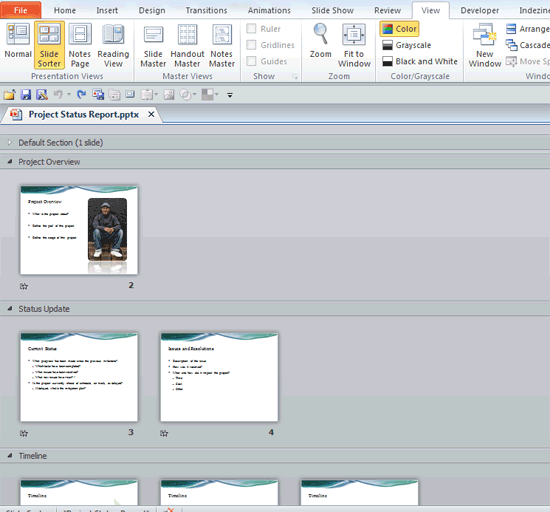
It doesn’t matter if there are many slides within your presentation, or just a few. If you have many slides, you may find the content difficult to handle, edit, or even deliver. And if you have a few slides, even then you may have the need to organize them logically in Sections. Yes, Sections are a PowerPoint feature that lets you organize slides into segments or divisions for easier management. The Section option is new within PowerPoint 2010 — and enables you to divide your presentation slides into logical parts.
Filed Under:
PowerPoint 2010
Tagged as: PowerPoint 2010, Slide Management, Tutorials
Comments Off on Learn PowerPoint 2010 for Windows: Getting Started with Sections
We first bring you a new set of organic and irregular shapes – and we also look at alternatives for Microsoft’s disbanded Office Clip Art Gallery. We then explore how you can add quiz questions using Adobe Presenter, an add-in program for PowerPoint. PowerPoint 2011 for Mac users can learn how they can add gradient stops, and also how they can work with transparency in shape outlines (borders). You also learn how to rotate and flip picture fills in both PowerPoint 2011 for Mac and PowerPoint 2010 for Windows. And don’t miss the new discussions and templates of this week!

Read Indezine’s PowerPoint and Presenting News.
Filed Under:
Ezine
Tagged as: Ezine, Indezine, News, PowerPoint
Comments Off on PowerPoint and Presenting News: February 3, 2015
We explored previously how reusing your existing slides can be a great help, since it saves so much of your time. While bringing up the Reuse Slides task pane that enables you to add selected slides to the active presentation, there is another easier and more intuitive way to reuse your slides. You can drag selected slides from the source presentation and drop them within the newer presentation. In this tutorial, we’ll show you how to reuse slides through this drag and drop process within PowerPoint 2013 for Windows.

Learn how to reuse slides via drag and drop in PowerPoint 2013 for Windows.
Filed Under:
PowerPoint 2013
Tagged as: PowerPoint 2013, Slide Management, Tutorials
Comments Off on Learn PowerPoint 2013 for Windows: Reuse Slides Through Drag and Drop
Reusing your existing slides can be a great help: first you need not recreate stuff you already have and secondly you are saving so much time that you can use more effectively to practice your presentation! Having said that, always start by creating an outline of your presentation — thereafter reuse any existing slides. PowerPoint provides a quick command that locates specific slides, and enables you to add it to the active presentation. While this process works the same way in all versions of PowerPoint, there are small interface changes — in this tutorial, we’ll show you how to reuse slides in PowerPoint 2013 for Windows.

Learn how to reuse slides in PowerPoint 2013 for Windows.
Filed Under:
PowerPoint 2013
Tagged as: PowerPoint 2013, Slide Management, Tutorials
Comments Off on Learn PowerPoint 2013 for Windows: Reuse Slides
Do you want to add a backdrop to your PowerPoint slides? Then you will love these City Skyline graphics for PowerPoint. These city skyline slides show combined or sectional areas of typical cities. The entire collection contains over 11 city skylines and all of them come in various colors. What’s more! All these are PowerPoint native, you can resize, recolor, add effects and do more, right inside PowerPoint.

Download and use these skyline shapes in your slides.
Filed Under:
Presentation Bank
Tagged as: Graphics, PowerPoint, Presentation Samples, Shapes
Comments Off on Silhouettes: City Skylines for PowerPoint
Microsoft and the Office logo are trademarks or registered trademarks of Microsoft Corporation in the United States and/or other countries.