
This is the print version of this page. All content is copyright Indezine.com 2000-2026.
Thoughts and impressions of happenings in the world of PowerPoint and presentations, continuously updated since 2003.
See Also:
PowerPoint and Presenting Notes
PowerPoint and Presenting Glossary
Here’s the new, third set of animated Gears — we call this one Animated Gears Yet Again! The previous two series can be found here, and here. Like the earlier series, these come in both animated & non animated versions. The time-consuming process of using Gears and animating them in PowerPoint is now made easy again. Watch the video on this page and explore how the gears animate perfectly in the slide.

Download and use these gears in your slides.
Filed Under:
Presentation Bank
Tagged as: Animation, Design, Graphics, PowerPoint, Presentation Samples
Comments Off on PowerPoint Animation: Gears, Yet Again (Series 03)
After inserting a SmartArt graphic within PowerPoint (or converting some bulleted text to SmartArt), you can easily add more shapes to your SmartArt graphics with just a click or two. You can even delete shapes from any existing SmartArt graphic — follow these steps to learn how you can delete shapes from your SmartArt graphics in PowerPoint 2013.

Learn how to delete shapes from an existing SmartArt graphic in PowerPoint 2013 for Windows.
Filed Under:
PowerPoint 2013
Tagged as: PowerPoint 2013, SmartArt, Tutorials
Comments Off on Learn PowerPoint 2013 for Windows: Delete Shapes from an Existing SmartArt Graphic
Within PowerPoint, you can apply transitions to your slides and later tweak them aplenty. You can adjust the duration and timing of any transition, and even add a sound that will play while the slide transition happens. In addition, you can also play with some more options providing more control over the transition style applied to the slide — these are all placed in a single broad category called Effect Options. These Effect Options, as the very name indicates are related to the individual transition effects, and options may differ for each effect. Further, each transition effect may or may not provide Effect Options. These Effect Options enable you to have more control over the transition style applied to the slide.

Explore what slide transition effect options are in PowerPoint 2013 for Windows.
Filed Under:
PowerPoint 2013
Tagged as: PowerPoint 2013, Transitions, Tutorials
Comments Off on Slide Transition Effect Options in PowerPoint 2013 for Windows
A Theme is an important part of your PowerPoint presentation, and to some extent it is also an important element that helps create the same consistent appearance within your Word documents and Excel sheets. Also, it is this Theme that persists in retaining your brand identity within your slides and other digital documents. And yet, Themes are a mystery to most users – and there’s no easy way to understand what is happening behind the scenes. Avopress Designer, the product we are reviewing today can help solve that mystery.

Learn how you can create and edit Microsoft Office Themes using Avopress Designer.
Filed Under:
Add-ins
Tagged as: Add-in, PowerPoint
Comments Off on Avopress Designer: The Indezine Review
Once you insert a SmartArt graphic within PowerPoint or convert some bulleted text to SmartArt, you may want to add more shapes to your SmartArt graphic. Fortunately, the SmartArt feature allows you to make these additions and later edit them too. You can add more shapes to your existing SmartArt graphics either from within the SmartArt graphic itself, or through the Text Pane. Note that adding a new shape to a SmartArt graphic entirely depends on the SmartArt variant that you are using. Some variants offer more options than the others.
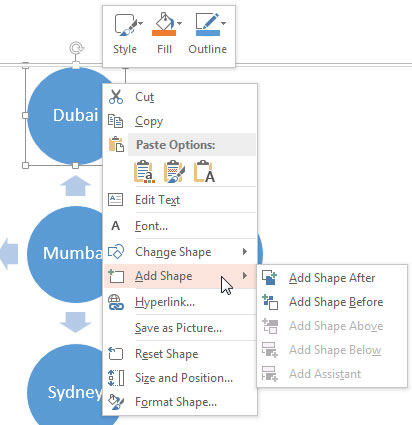
Learn how you can add more shapes to existing SmartArt graphics in PowerPoint 2013 for Windows.
Filed Under:
PowerPoint 2013
Tagged as: Diagrams, Graphics, Microsoft Windows, Office 2013, PowerPoint 2013, SmartArt, Tutorials
Comments Off on Adding Shapes to Existing SmartArt Graphics in PowerPoint 2013 for Windows
Microsoft and the Office logo are trademarks or registered trademarks of Microsoft Corporation in the United States and/or other countries.