
This is the print version of this page. All content is copyright Indezine.com 2000-2026.
Thoughts and impressions of happenings in the world of PowerPoint and presentations, continuously updated since 2003.
See Also:
PowerPoint and Presenting Notes
PowerPoint and Presenting Glossary
 Bernardo Castello Branco graduated in Linguistics from the University of São Paulo, Brazil. Bernardo started his career as an art director at São Paulo’s advertising agency CBBA-Propeg. In 1999, he became co-founder and director of Casulo – Digital Design, a multimedia design agency. In mid-2000, meeting the frequent requests of advertising agencies and direct clients, Casulo started to develop and design presentations. As this business area consolidated as an important income source, Bernardo and his partners, created in 2010 an independent new business unit: Casulo – Winning Presentations.
n this conversation, Bernardo talks about PowerPoint design, and his firm Casulo.
Geetesh: What are your perceptions on PowerPoint design, and is this branch of graphic design finally getting credit as a recognized, art form?
Bernardo: Presentation design and PowerPoint, as a design tool, were always been undervalued in the graphic design and art world. Certainly due to its apparent simplicity of use and effects, accessible to almost everyone, very few in the professional environment gave it the attention it really deserved.
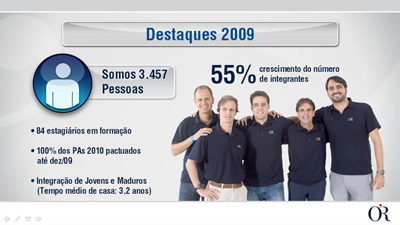


More recently, thanks to the emergence of well designed slides by presentation design agencies which are presenting higher-level work in the market, there has been a marked increase in the quality and appreciation of slide design. With talent and creativity — and thanks to the newest multimedia and sharing capabilities of its new 2010 version, PowerPoint is on a new path to a well deserved recognition.
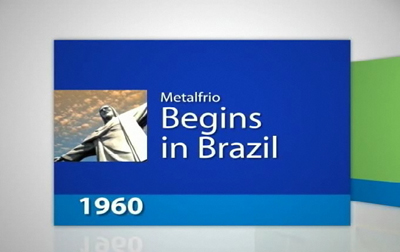
Geetesh: Tell us about the PowerPoint design that Casulo creates, and what are the unique facets that sets presentation design in Brazil apart from work done elsewhere in the world.
Bernardo: At Casulo, we have always appreciated the artistic and creative faculties because we believe in its major role in visual communication, and of course in presentation design, where PowerPoint reigns as tool.
In Brazil, design is something very well accepted and even highly cultivated. In recent years Brazilian design has grown and consolidated, being recognized worldwide as modern and matured, with its own style and personality. Our references are the aesthetics of a still young and positive country, which greatly believes in the future and is widely open to innovation, assimilating all the information that comes from other places (we value the work developed by Portuguese Tribe Presentations) and introducing its own rich and varied cultural aspects.
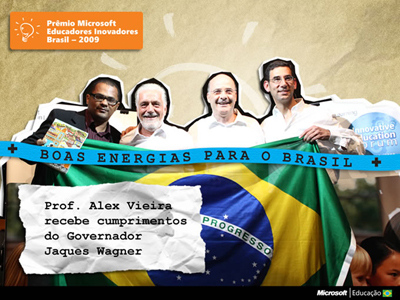

Naturally, this melange has spread to the Brazilian presentations design sphere and its major delivery tool: PowerPoint, clearly adding value, quality and personality to the work produced here.

The views and opinions expressed in this blog post or content are those of the authors or the interviewees and do not necessarily reflect the official policy or position of any other agency, organization, employer, or company.
Filed Under:
Interviews
Tagged as: Design, Interviews, PowerPoint, Presentation Samples
This tutorial is a part of the series on Shape Effects in PowerPoint 2010. You have already explored the preset effects available, and also how you can apply a shadow effect to any selected shape. In this tutorial, I’ll show you how you can quickly add a reflection to a shape.
Learn how to apply Reflection effects to a selected shape(s) in PowerPoint 2010 for Windows.
Filed Under:
PowerPoint 2010
Tagged as: Effects, PowerPoint 2010, Shapes, Tutorials
The Shapes gallery in PowerPoint consist various shapes, both open and closed. Most of the shapes in this gallery are closed shapes (rectangle, ellipse, and triangle are some of the closed shapes). There are also a few open shapes such as the straight point to point line. Some other tools let you create both open and closed shapes — these are the Freeform Line, Curve, and Scribble tools. In addition, you can convert any closed shape to an open shape and vice versa, as you will learn in this tutorial.
Learn how you can open and close paths for shapes in PowerPoint 2010 for Windows.
Filed Under:
PowerPoint 2010
Tagged as: Lines, PowerPoint 2010, Shapes, Tutorials
Xara 3D Maker 7 is an application that lets you create 3D text and graphics such as headings, logos, titles and buttons. You can also create 3D animations and export them to GIFs, AVIs and simple Flash movie sequences, and screensavers for your desktop. With several ready-to-use 3D styles and animations, you can create 3D animations or images for your web pages, mailshots, movies and presentations.
Filed Under:
Reviews
Tagged as: Graphics, PowerPoint, Review
 Jennifer Bedford is the Marketing Project Manager for TechSmith Corporation. She has been with TechSmith for over 10 years working in the Administration, Sales and Marketing departments. After growing up in Massachusetts, Jennifer moved to Michigan for college. Jennifer is a 1997 graduate of Michigan State University with a degree in Hospitality Business. She lives in Howell, MI with her husband and two daughters.
In this conversation, Jennifer discusses how beginner users can easily use Snagit, especially for their PowerPoint presentations.
Geetesh: What exactly does SnagIt do, and how easy is it for a complete novice to use?
Jennifer: Snagit is a screen capture tool. You can use it to capture anything on your computer screen from an image, to a scrolling window, to an entire webpage. You can then save or share your capture, or edit it first with Snagit Editor.
I consider myself comfortable with computers, but not an expert and I use Snagit every day. Taking a basic capture is really simple for even a novice. Some of the editing capabilities are more complex and take a little practice and help. Personally, I use some editing, but I don’t have the need to do a lot of really complex things, so Snagit is really quick and simple to use.
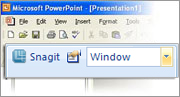
Geetesh: Many PowerPoint users also work with Snagit – to get screen-shots into their presentations -– can you tell us a little more about how PowerPoint users can benefit from having Snagit installed on their systems
Jennifer: With Snagit you can easily add screen-shots to your presentation and better demonstrate exactly how something is done or how it should look. In addition, you can automatically add Snagit to your toolbar in PowerPoint so that anytime you want to do a screen-grab, you don’t need to open another application. It is already built into PowerPoint.
The views and opinions expressed in this blog post or content are those of the authors or the interviewees and do not necessarily reflect the official policy or position of any other agency, organization, employer, or company.
Filed Under:
Interviews
Tagged as: Interviews, PowerPoint, Snagit, Techsmith
Microsoft and the Office logo are trademarks or registered trademarks of Microsoft Corporation in the United States and/or other countries.