
 (No Ratings Yet)
 Loading...
When a picture is inserted on your PowerPoint slide, you are essentially doing a task that is frequent and commonplace — and to you, this may look like an activity that’s simple. But behind this simple task, there are options you may not be aware of. You know that pictures located in any of your folders can be inserted on a slide. However, have you wondered about the relation a picture on the slide has with the original picture located in your folder? Yet, there are options within PowerPoint that let you maintain the relation between the original picture and the inserted picture — for example, if you make changes to your original picture, PowerPoint will update its copy on the slide!

Learn about options available for inserting or linking pictures in PowerPoint 2013 for Windows.
Related Posts
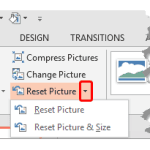 Once a picture is inserted within PowerPoint, any manipulations you make to that picture are strictly only on the surface. The appearance of the pictu...
 Working with pictures in PowerPoint 2013 can be so much fun and fulfilling at the same time. One of the coolest options is to recolor the hue of your ...
 PowerPoint is a slide program but that doesn't mean that it does not have some cool picture editing tricks up its sleeve. When we say "cool", we certa...
 Imagine you have inserted a picture in PowerPoint 2013 for Windows, and then you applied various picture editing options to enhance its appearance. Fo...