
You learned how to duplicate shapes by dragging in an earlier tutorial, but while that’s a nice way to duplicate five or ten shapes, it’s not the best way to create ten, twenty, or more copies. We all know that you can press Ctrl C to copy any shape in PowerPoint to the clipboard, and a resulting Ctrl V always pastes a copy from the clipboard to the slide — what many people don’t realize is PowerPoint has this almost supernatural keyboard shortcut called Ctrl D (yes, the D stands for duplicate), and this Ctrl D shortcut does more than just duplicate; in fact it creates a pattern of evenly-spaced and symmetrical shapes! Follow these steps to explore for yourself.

Learn how to duplicate shapes using the Ctrl+D command in PowerPoint 2013 for Windows.
Related Posts
 You know that Action Buttons are helpful because they at least look like buttons! But choices are limited to what PowerPoint provides – and let’s face...
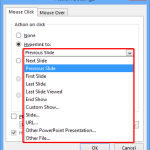 Just inserting Action Buttons on your slide is not sufficient -- you need to apply hyperlinks to them so that they have some function. You have alread...
 Once you place Action Buttons on your slide in PowerPoint 2013 for Windows, you can make them do all sorts of actions when clicked. What sets Action B...
 It is easy to flip and rotate a picture on your slide. However this same flipping can be a little tricky when you use a Picture fill within a shape. T...