
Drawing with the Scribble line tool is almost the same as drawing with the Freeform line tool — but there is one vital difference. You don’t need to double click to create an end point for your line with the Scribble tool. Also, once you start drawing with the Scribble tool, you can’t release the mouse button until you finish drawing. So, you can’t draw a perfect straight line as you would do with the Freeform line tool. The point where you release the mouse button will be the end point for the drawing. In many ways thus, the Scribble tool mimics real life usage as you draw with a pencil on a piece of paper. Your line stops drawing the minute you stop drawing it without having to double-click.

Learn how to draw with the Scribble line tool in PowerPoint 2013 for Window.
Related Posts
 You know that Action Buttons are helpful because they at least look like buttons! But choices are limited to what PowerPoint provides – and let’s face...
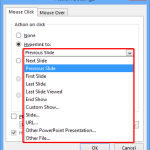 Just inserting Action Buttons on your slide is not sufficient -- you need to apply hyperlinks to them so that they have some function. You have alread...
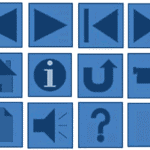 Once you place Action Buttons on your slide in PowerPoint 2013 for Windows, you can make them do all sorts of actions when clicked. What sets Action B...
 It is easy to flip and rotate a picture on your slide. However this same flipping can be a little tricky when you use a Picture fill within a shape. T...