
Many times when you draw connectors between shapes, the connector may use the shortest path to link between two shapes. This might mean that your connector overlaps other shapes, text boxes, or any other object that is positioned between the connected objects. You might have another reason to use a longer connector between two shapes as well. Whatever your reason may be, the good news is that you can easily reroute your connectors, either automatically or manually.
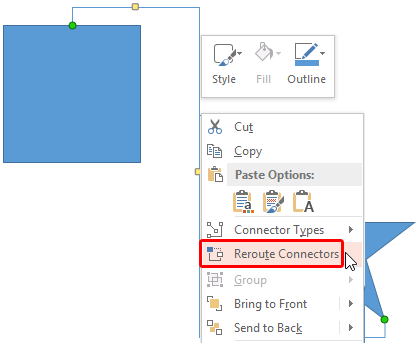
Learn how to reroute connectors automatically and manually within PowerPoint 2013 for Windows.
Related Posts
 You know that Action Buttons are helpful because they at least look like buttons! But choices are limited to what PowerPoint provides – and let’s face...
 Just inserting Action Buttons on your slide is not sufficient -- you need to apply hyperlinks to them so that they have some function. You have alread...
 Once you place Action Buttons on your slide in PowerPoint 2013 for Windows, you can make them do all sorts of actions when clicked. What sets Action B...
 It is easy to flip and rotate a picture on your slide. However this same flipping can be a little tricky when you use a Picture fill within a shape. T...