
Once you add an audio/sound track to your PowerPoint presentation, you can let the inserted audio span across all your slides from the first one to the last by selecting the Play across slides option. That’s great if you need the same music playing on all your slides. But what if you want the music to play only across some successive slides? What if you want the music to play from slide 1 to 12, and let all slides thereafter play without any music? Or you may want to add another audio clip for the next set of slides? Either way, it is possible to limit the number of slides that your music will play across.
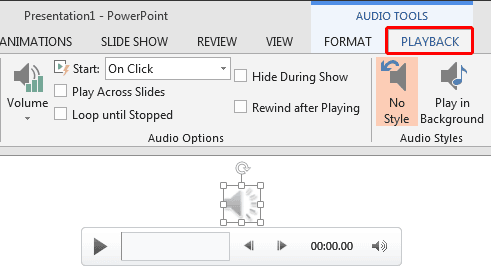
Loop audio clips to play across specific slides in PowerPoint 2013 for Windows.
Related Posts
 When you select an audio clip in PowerPoint 2013, you will see two extra contextual tabs on the Ribbon. One of these tabs is the Audio Tool Playback t...
 You have a 5 minute video or audio clip playing on your slide. And exactly after the clip has played for 30 seconds, you want some text to appear supe...
 When you insert an audio clip on your slide, you can see a sound icon that represents the audio clip. Of course, it rarely matters what the icon looks...
 When you insert an audio clip into a PowerPoint slide, you can control its volume, set it to play looped, or even hide the audio icon. These are some ...