
 (No Ratings Yet)
 Loading...
PowerPoint enables you to add captions for the pictures you add in a Photo Album presentation. Note that by default, the picture’s file name is used as a caption, so if the original file name was “Winter Morning.jpg”, the caption you see on your slide will be “Winter Morning”. Unfortunately it is not possible to get such nice, descriptive names for all pictures — these days most pictures are just subsequent numbers from a digital camera — so a name like IMG06712.jpg is more common! You really don’t want a caption like IMG06712 — fortunately, PowerPoint 2013 lets you change captions too! Before we learn about editing captions, let us first show how you can enable them.

Learn how to use captions in Photo Album presentations within PowerPoint 2013 for Windows.
Related Posts
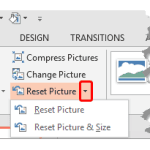 Once a picture is inserted within PowerPoint, any manipulations you make to that picture are strictly only on the surface. The appearance of the pictu...
 Working with pictures in PowerPoint 2013 can be so much fun and fulfilling at the same time. One of the coolest options is to recolor the hue of your ...
 PowerPoint is a slide program but that doesn't mean that it does not have some cool picture editing tricks up its sleeve. When we say "cool", we certa...
 Imagine you have inserted a picture in PowerPoint 2013 for Windows, and then you applied various picture editing options to enhance its appearance. Fo...