
We already explored how you can link from an anchor object to any slide within the active presentation. However, this sort of linking is only the beginning of the possibilities for linking that PowerPoint 2013 for Windows provides. To take this to the next level, we will learn how you can link from an anchor object to create a new email message.

Learn how you can create a new email message with a hyperlink in PowerPoint 2013 for Windows.
Related Posts
 Do you want to link to an Excel file from within PowerPoint? You can then use the technique explained within our Linking to Any File in PowerPoint 201...
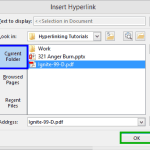 Although you can link from one presentation to another in PowerPoint, you can essentially use the same concept to link to any other file! You can link...
 We have explored several hyperlinking tutorials in PowerPoint 2013. However, what happens when you hover any of these hyperlinks before you actually c...
 You know that Action Buttons are helpful because they at least look like buttons! But choices are limited to what PowerPoint provides – and let’s face...