
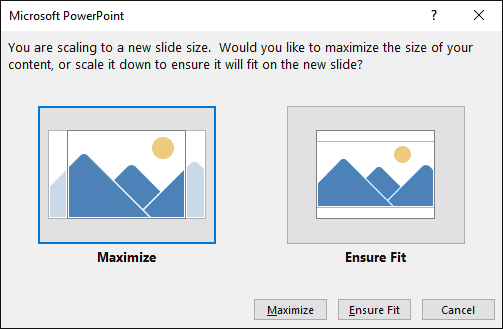
We already explored how PowerPoint 2016 defaults to Widescreen slides in all new presentations. However, you can change your presentation’s aspect ratio from Widescreen (16:9) to Standard (4:3) — and also do the reverse. PowerPoint 2016 has some features up its sleeve that make these changes of aspect ratios easier to understand — and some quirks too! This tutorial will help you understand both scenarios better.
Related Posts
 We explored and complained about how PowerPoint 2016 has made widescreen (16:9) as the default aspect ratio for new presentations. Although you can ch...
 You must pay attention to the position and alignment of slide objects on your PowerPoint slide, be it shapes or even the many inserted pictures. In th...
 Microsoft Office 2016 for Windows was released on September 22, 2015. It is the successor of the previous version, Office 2013, and among the most use...
 Text is an important element in your PowerPoint slides, and most of the time, text alignment is taken care by the defaults set in your presentation te...