
 (2 votes, average: 5.00 out of 5)
 Loading...
Sometimes we come across slides that can be hazardous to our vision! One look at such a slide, and it really doesn’t matter if the content is great or not. The reason why it no longer matters is because such slides have nothing understated about them, and they seem to ensure that audiences get distracted. You might end up with a similar slide for no fault of yours, because someone else prepared them for you! You now need to eradicate all the formatting on the slide to make it look more simple and clean. You may need to change the position, size, and text layout for the placeholders on the slide too. Fortunately, there is an easy, one-click process to restore some sanity in such slides.

Learn how to reset your slide formatting with one click in PowerPoint 2016 for Windows.
Related Posts
 Apply video editing options such as recoloring, corrections, preset video styles, video borders, video effects, resizing/flipping, etc. to your video ...
 Do you have a secret slide with useful information that you would rather not delete? But what if you show this slide to your audience inadvertently? H...
 You must pay attention to the position and alignment of slide objects on your PowerPoint slide, be it shapes or even the many inserted pictures. In th...
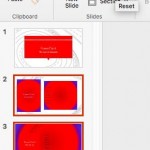 Sometimes we come across slides that can be hazardous to our vision! One look at a terrible slide, and it really doesn't matter if the content is grea...