
Recent versions of PowerPoint accept more video file formats than previous versions and can do a lot more with videos, including trimming of video clips. However, it also embeds all inserted video clips by default, and this can result in huge presentations that contain huge video files! This ultimately occupies oodles of disk space and may also make PowerPoint work a wee bit slower. To tackle this problem, you can explore media compression abilities built right inside PowerPoint. You no longer need any third-party media compression tool since PowerPoint’s native Media Compression options make this task very easy indeed.
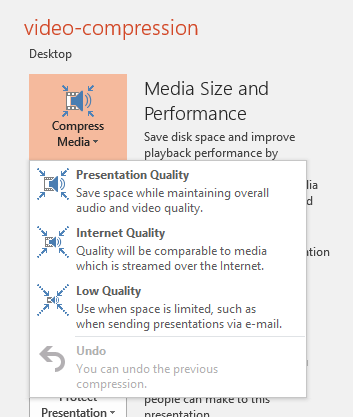
Learn about video compression options in PowerPoint 2016 for Windows.
Related Posts
 You can export your presentation slides created within PowerPoint into a video clip in either WMV or MP4 formats. This is probably the easiest way to ...
 Do you want to add a video clip to your PowerPoint slide so that it continues to play across subsequent slides? This means that when you move from one...
 After inserting a video clip into PowerPoint, you can play the clip with minute control over its volume, looping, rewinding, etc. Rather than create s...
 When you insert a video clip in PowerPoint, you may find that the inserted video starts playing abruptly when started within the Slide Show view, caus...