
After inserting a video within your presentation, you may see a blank/black rectangle instead—caused by the file format of the video clip inserted on the slide. Not all the formats show these blank/black rectangles. In fact, you may also see the first frame of the video clip in some cases. However, if you do see this blank/black rectangle, do note that it may look professional. With PowerPoint’s Poster Frame option, you can easily overcome this limitation, and change the black rectangle to a picture of your choice by selecting a frame from the video itself, or even a picture from a different source.

Add a Poster Frame for your video clip in PowerPoint 2016 for Windows.
Related Posts
 You can export your presentation slides created within PowerPoint into a video clip in either WMV or MP4 formats. This is probably the easiest way to ...
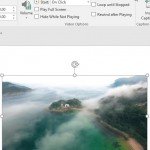 Do you want to add a video clip to your PowerPoint slide so that it continues to play across subsequent slides? This means that when you move from one...
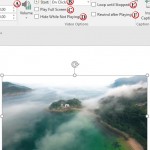 After inserting a video clip into PowerPoint, you can play the clip with minute control over its volume, looping, rewinding, etc. Rather than create s...
 When you insert a video clip in PowerPoint, you may find that the inserted video starts playing abruptly when started within the Slide Show view, caus...