
 (2 votes, average: 5.00 out of 5)
 Loading...
By Kurt Dupont and Geetesh Bajaj
With DataPoint, you can add new features to Microsoft PowerPoint for creating data-driven presentations. This lets you update content automatically when you open the presentation and even while the slideshow is running. With PowerPoint and DataPoint together, you can set up an information screen or message board that displays messages, news, or announcements, and even update the content remotely.
Microsoft Access is mainly used for databases. You can easily create a new database, design its structure, add data, and set up queries to filter or join multiple tables. You can also enter data through forms. To use this database in your presentation, save it on a file server, then connect DataPoint to read the data for your slides.
Start by installing PowerPoint and DataPoint on your computer. Open PowerPoint and create a new presentation using a blank template or your default company template.
What is DataPoint?
DataPoint is an add-in for Microsoft PowerPoint that lets you connect your slides to various data sources, enabling real-time data updates within presentations. With DataPoint, you can link slides to databases, Excel files, web feeds, and more, so your content refreshes automatically as the data changes.
This tool is often used to create live dashboards, digital signage, or information screens where up-to-date data is critical, such as in corporate presentations, news boards, or display screens in lobbies and offices. A 7-day trial of DataPoint is available.
1. Use a Sample Access database
This step is required only if you do not have a sample Access database to use. If you already have one, move to the next step, Initiate the Connection to your Access database.
- If you do not have a database to use, you can use the Northwind demo database of Microsoft Access. To do so, first launch Microsoft Access, and choose the New option in Backstage view, as shown in Figure 1, below. Next, click to choose the Northwind starter edition option, highlighted in red within Figure 1.

Figure 1: Choose the Northwind starter edition option- In the subsequent dialog box, give the new file a name and choose a location, as shown highlighted in red within Figure 2, below. Next, click the Create button, highlighted in blue within Figure 2. Do remember the name and the file location. You can now exit Microsoft Access.

Figure 2: Create a new Access database
2. Initiate the Connection to your Access database
Now, you will need to set up a data connection between DataPoint and the Microsoft Access database:
- In PowerPoint, click on DataPoint tab of the Ribbon, as shown highlighted in red within Figure 3, below. Next, click the List button, highlighted in blue within Figure 3.
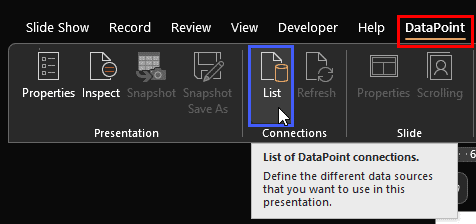
Figure 3: DataPoint tab of the Ribbon- Doing so brings up the Connections dialog box, shown in Figure 4, below. Scroll within the Available connections area, until you see the Microsoft Access option, highlighted in red within Figure 4. Next, click the Add Connection button, highlighted in blue within Figure 4.

Figure 4: Connect PowerPoint with an Access database
3. Add connection
Now, we will choose a specific Access database file to connect within DataPoint:
- You will now see the Microsoft Access database dialog box, shown in Figure 5, below. Click the Browse button, highlighted in red within Figure 5.

Figure 5: Browse to connect Access database- This action will bring up the Select a Microsoft Access database window that allows you to navigate to the folder where you saved your Access file, as shown in Figure 6, below. Select the database file you want to use, and click the Open button, highlighted in red within Figure 6.

Figure 6: Select a Microsoft Access database- You will now be returned to the Microsoft Access database dialog box, shown in Figure 7, below. You can optionally add login credentials, if needed within the Security area, highlighted in red within Figure 7. Also, click the Test button, highlighted in blue within Figure 7.
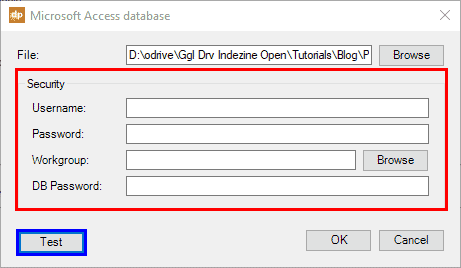
Figure 7: Add credentials and test your connection- If the connection was tested positively, you will see the message window, shown in Figure 8, below. Click the OK button in two successive dialog boxes.
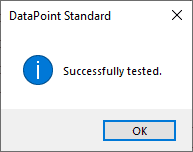
Figure 8: Successfully tested- Back in the Connections dialog box, you can see the connection you just created, highlighted red within Figure 9, below. Click on the Rename button, highlighted in blue within Figure 9.

Figure 9: Rename the connection- Now, type over the name to a meaningful name, as shown in Figure 10, below. Press the OK button or hit the Enter key to commit.

Figure 10: Renamed connection
4. Add table or query
Now with this data connection selected, we need to add a query to select a table:
- Now, with the Northwind database or your connection selected, click the Add query button, highlighted in red within Figure 11, below.

Figure 11: Add query- DataPoint will now retrieve a list of all the tables and queries that are created in the database. For this example, select the Orders table, as shown highlighted in red within Figure 12, below.

Figure 12: Select a table
5. Data refresh options
Now, let us set options for how frequently you want DataPoint to refresh the data:
- With the Orders table selected, you will notice that the Data refresh rate is set to Continuous updating, as shown highlighted in red within Figure 13, below. Also, the Interval value is set by default to 60 seconds, as shown highlighted in blue within Figure 13. Change to 5 seconds.
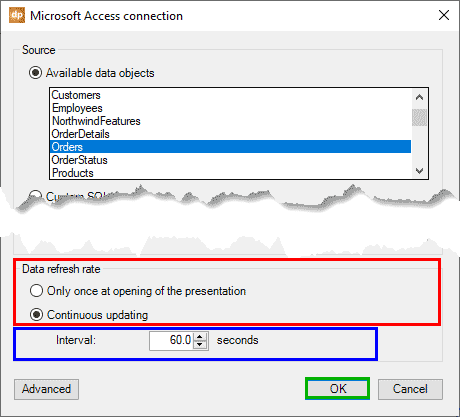
Figure 13: Set Data refresh date- When no updates are detected in the Access database, DataPoint will not update the data on the slides. However, whenever new data is detected, DataPoint will update text boxes and tables at once with the new content. Next, click the OK button, highlighted in green within Figure 13, above, to add the query to the connection.
6. Preview data
Let us now preview the data sourced from the connected database:
- By default, the query is named New query, as shown highlighted in red within Figure 14, below. However, you can rename the query to whatever you want it to be.

Figure 14: Preview your data- Notice that you can see a preview of the data that can be used in your presentation, as shown highlighted in green within Figure 14, above. Click the OK button, highlighted in blue within Figure 14 to close this dialog box.
- Now, we are done with the part of the task that prepares us for adding content from the database to your slides. On the slide itself, we can add text boxes and link the text box to a given cell from the data. This user data is presented like a spreadsheet with rows and columns in the preview window, highlighted in green within Figure 14, shown on this page. The columns within the sheet signify fields such as name, birth date, address, etc. The rows on the sheet represent the values within these fields.
7. Linking
Now, you can add placeholders that will display content from the sourced database:
- Placeholders to source database content can be text boxes or even picture placeholders, but to keep matters simple, let us insert a text box on the slide, as shown in Figure 15, below.

Figure 15: Text box inserted- With the text box selected, access the DataPoint tab of the Ribbon, and click the Text box button, shown highlighted in red within Figure 16, below.

Figure 16: Text box button in DataPoint- Doing so brings up the Text box dialog box, shown in Figure 17, below. Here, you can alter properties.

Figure 17: Text box properties- You first need to select a Data connection from the list, shown highlighted in red within Figure 17, above. However, since we have only one data connection created, there’s nothing to choose from. Next, select the Column that contains the field that you want to display. This action brings up a drop-down list of all fields, as shown highlighted in red within Figure 18, below. We chose the ShippedDate field.

Figure 18: Choose a Column- You can also add a specific Row number, as shown highlighted in red within Figure 19, below. The contents of the selected row will be shown in the Preview area, highlighted in blue within Figure 19. Next, click the OK button, highlighted in green within Figure 19, to bind the data connection information to that text box.

Figure 19: Select a row number- You are now almost done, and there’s no need to enter text manually anymore within the text box. The text box will update the content with the data of the linked data cell of the Microsoft Access database. Now, you can similarly add more text boxes to the slide as needed and link them all to other columns (fields) of the database connection, as shown in Figure 20, below.

Figure 20: Add more text boxes to the slide
8. Play Slide Show
Next, play your presentation:
- Run your presentation in Slide Show view.
- DataPoint will automatically check for data updates and refresh the slide content in real-time. You can now have your information screen or message board running in full screen, displaying live data updates.
- If someone opens the database on a different computer, they can add or change data and save it back to the database. No worries! Your information screen will refresh automatically, keeping everything up-to-date based on the set refresh rate.
Do let us know if this tutorial worked for you, or if it was helpful.

Kurt Dupont is a solution provider who would go out of his way just to ensure he brings out the best when it comes to issues that have to deal with data-driven presentations, data visualization, and digital signage software.
He started by working at airports worldwide to set up airport databases and flight information screens. This evolved to become the basis for PresentationPoint.
The views and opinions expressed in this blog post or content are those of the authors or the interviewees and do not necessarily reflect the official policy or position of any other agency, organization, employer, or company.
Related Posts
 By Kurt Dupont and Geetesh BajajMaking Fun Personalized Videos with PowerPoint—Super Easy!How Did We Make This Cool Personalized Video?Making Fun Pers...
 By Kurt DupontDigital signage is taking over almost every industry, and the automobile business is no exception. Today, we’re diving into how digital ...
 By Kurt Dupont What is a Digital Menu Board? Digital menu boards are menus displayed on computer monitors or TV screens. These are commonly used in co...
 By Kurt Dupont Would you be watching screens and channels for a long time when you assume that they are just showing old content on their digital sign...