
By Kurt Dupont and Geetesh Bajaj
In a data-driven world, staying current is key—but sometimes you need a fixed record. With PowerPoint’s DataPoint add-in, you can create snapshot presentations that capture your data at a specific moment, perfect for archiving or sharing static, unchanging content.
What’s the Deal with DataPoint Presentations?
What’s a Snapshot Presentation, and Why Would You Want One?
Start with Your Raw Data
Generating a Snapshot Presentation
What’s the Deal with DataPoint Presentations?
Presentations made with the DataPoint add-in for PowerPoint are like peanut butter and jelly: two essential parts working together. Here’s how it breaks down:
- The Slides
These are your regular PowerPoint slides—the place where all your visuals, text, and charts live. - The Data Connection
This is where the magic happens. DataPoint links your slides to real-time data, turning your presentation into a dynamic, living document.
So, how does this work?
This is what you need to do:
Step 1. Set Up Your Data Connections: Think of DataPoint as the bridge between your presentation and your data source. You start by connecting it to your data—whether that’s a spreadsheet, database, or another source.
Step 2. Link the Data to Your Slides: Now, you attach that data to elements in your slides. You can link text boxes, charts, images, or tables directly to your data. When the data updates, so does your slide content!
It’s that simple: slides + data = DataPoint-powered presentations. No more manually updating charts or tables—DataPoint keeps everything fresh and up-to-date, so you can focus on wowing your audience. The advantage of using DataPoint is that when you open the presentation, it refreshes its linked content automatically. Even more, when you run the slideshow, it updates its data during the show, all in real-time.
What’s a Snapshot Presentation, and Why Would You Want One?
Sometimes, you need a presentation that freezes your data in time—like taking a quick photo. That’s where snapshot presentations come in.
Here’s How It Works:
A snapshot presentation captures your data at a specific moment and displays it in your slides. You can save it for archiving or share it with others for reporting purposes.
The Trade-Off:
Once you turn a DataPoint-enabled presentation into a snapshot presentation, it’s no longer dynamic. In plain English:
- Before: Your slides automatically updated as your data changed.
- After: Everything’s locked in place. The content becomes completely static, like a screenshot.
Snapshot presentations are perfect when you need a final, unchanging version of your data—no updates, no surprises, just a clear and frozen picture.
Start with Your Raw Data
Every great presentation starts with solid data, right? In this example, we’re using a Microsoft Excel file as our data source, as shown in Figure 1, below.
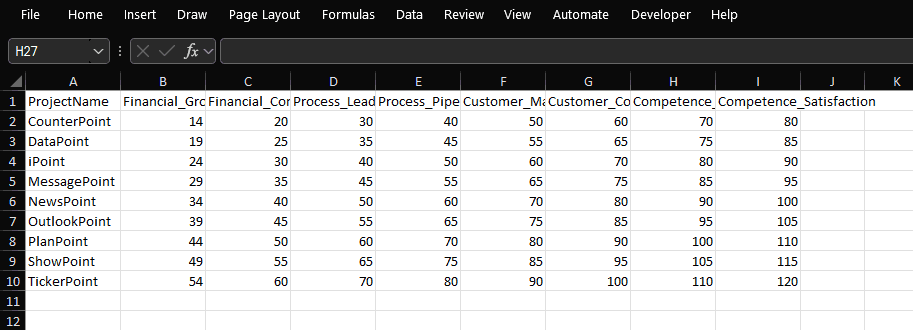
Figure 1: Excel as our data source
What’s in the Excel File?
- A list of projects (because, hey, we’re organized like that!).
- Key figures for reporting—think numbers and stats your management team cares about.
It’s simple: your raw data is the foundation for everything that comes next. Get it ready, and you’re off to a great start!
Now it’s time to make your data look good! Here’s what you do:
- Set Up Your PowerPoint Slides
Use text boxes, charts, or even cool gauges to show off your project information. Think of this as dressing up your data for the big show! - Link It with DataPoint
This is where DataPoint comes in. It connects your slides to the data you set up earlier. - Focus on the First Row
In this example, shown in Figure 2, below, the slide is linked to the first row of your data—so all the info from that row gets pulled into your visuals automatically.

Figure 2: Slide is linked to the first row of the data
Boom! You’ve just turned boring data into an eye-catching presentation.
Got lots of similar data? Use the data scrolling option to create virtual slides—one for each row of data. To turn on data scrolling, click the Scrolling button on the DataPoint tab of the Ribbon, and you will bring up the dialog box shown in Figure 3, below. Make sure that the Enabled option is checked, as shown highlighted in red within Figure 3. Also, change the value for Step time. You can see it is set at 5 seconds. This means that the slide will refresh with the next row of data after 5 seconds. Easy, right?
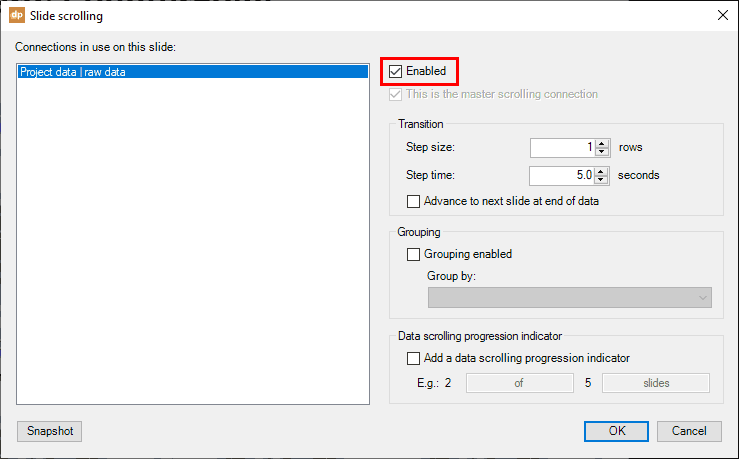
Figure 3: Activate data scrolling
Generating a Snapshot Presentation
Ready to create your snapshot presentation? It’s super simple: just click the Snapshot button, shown highlighted in red within Figure 4, below.

Figure 4: Click the Snapshot button
Here’s what happens next:
- A brand-new PowerPoint report or statistical presentation is created for you, based on your current data.
- If you’ve enabled data scrolling, the snapshot will generate multiple slides—one for each row of data.
- Each slide is unique, displaying a different set of data from your source.
- Each slide is static, and it will no longer reflect any new changes in your data.
And that’s it! You’ve got a polished, ready-to-share presentation with all your data locked in place, as shown in Figure 5, below. Easy, right?

Figure 5: Static presentation slides
Once your snapshot presentation is ready, sharing it is a breeze:
- Save It on a Network Share: Perfect for team access—everyone can find it in one central place.
- Email It to Others: Need to send it out quickly? Attach it to an email and share it with your audience in just a few clicks.
Snapshot presentations come with some big perks that’ll make your life easier:
- Create and Archive Reports: They let you turn your data into a clean, professional statistical report that’s perfect for archiving.
- No Extra Tools Needed: The people you share with don’t need DataPoint installed or access to the original data sources. Just send the presentation, and they’re good to go!
- Save Time, Every Time: Once you’ve set it up, generating a new snapshot is as simple as opening your presentation and clicking a button. That’s it—real-time data turned into a ready-to-go report in seconds.
Snapshot presentations are all about simplicity and efficiency.

Kurt Dupont is a solution provider who would go out of his way just to ensure he brings out the best when it comes to issues that have to deal with data-driven presentations, data visualization, and digital signage software.
He started by working at airports worldwide to set up airport databases and flight information screens. This evolved to become the basis for PresentationPoint.
The views and opinions expressed in this blog post or content are those of the authors or the interviewees and do not necessarily reflect the official policy or position of any other agency, organization, employer, or company.
Related Posts
 By Kurt Dupont Would you be watching screens and channels for a long time when you assume that they are just showing old content on their digital sign...
 By Kurt Dupont What is a Digital Menu Board? Digital menu boards are menus displayed on computer monitors or TV screens. These are commonly used in co...
 By Kurt DupontReady to level up your data game? In today’s business world, you need more than just rows and columns—you need to turn raw data into sma...
 By Kurt DupontDigital signage is taking over almost every industry, and the automobile business is no exception. Today, we’re diving into how digital ...