
Imagine you have inserted a picture in PowerPoint 2013, and then applied various picture editing options to enhance its appearance. For example, we added a border, applied some Picture Effects, etc. And then you realize that you have a better picture, or your boss asked you to change the existing picture to another one, but with all the same effects! You would probably delete the original picture and start all over again, and yes, that is a long process! Or you can change any existing picture into another with just a couple of clicks — retaining all effects.

Learn how to change (replace) one picture into another in PowerPoint 2013 for Windows.
Related Posts
 Once a picture is inserted within PowerPoint, any manipulations you make to that picture are strictly only on the surface. The appearance of the pictu...
 Working with pictures in PowerPoint 2013 can be so much fun and fulfilling at the same time. One of the coolest options is to recolor the hue of your ...
 PowerPoint is a slide program but that doesn't mean that it does not have some cool picture editing tricks up its sleeve. When we say "cool", we certa...
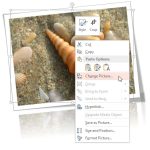 Imagine you have inserted a picture in PowerPoint 2013 for Windows, and then you applied various picture editing options to enhance its appearance. Fo...