
 (No Ratings Yet)
 Loading...
When PowerPoint 2013 is launched, do you see an empty presentation with just one slide? This template influences the default look that PowerPoint provides — the first slide typically has placeholders for the slide’s title and subtitle. The text typed within these placeholders shows up in black over a white slide background. Although this default look works most of the time, you don’t have to stick with these defaults. You can easily change the default look to something else — for example, use your custom PowerPoint template or Theme as the default? Or even any of the other templates / Themes built within PowerPoint.

Learn how to change the default template or Theme in PowerPoint 2013 for Wiindows.
Related Posts
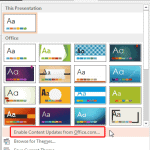 When you bring up the Themes gallery within PowerPoint 2013, do you find that several Themes are missing? Alternatively, do you find that your friends...
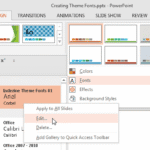 Theme Fonts comprise a pair of font choices, one each for your slide titles (Heading font) and the other for everything else on your slides (Body font...
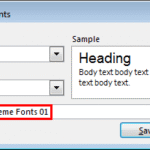 Theme Fonts are font choices that are part of a Theme in PowerPoint or other Microsoft Office programs. Each Theme Font set has two font choices, one ...
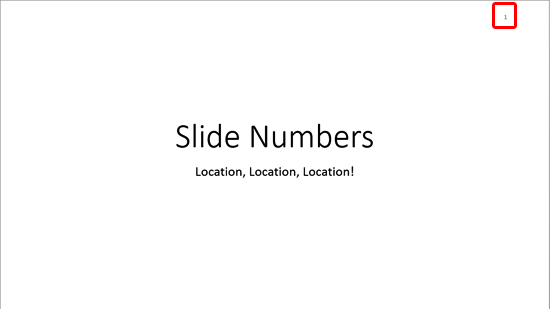 When you insert Slide Numbers on your slides, you may discover that the location of the Slide Number changes depending upon the active Theme of your s...