
When a picture is inserted on your PowerPoint slide, you are essentially doing a task that is frequent and commonplace — and to you, this may look like an activity that’s simple. But behind this simple task, there are options you may not be aware of. You know that pictures located in any of your folders can be inserted on a slide. However, have you wondered about the relation a picture on the slide has with the original picture located in your folder? By default, PowerPoint retains no relation — even if you delete or move the original picture file you inserted, the copy on your slide will still be retained since PowerPoint saves the picture as a part of the file it creates. Yet, there are options within PowerPoint that let you maintain the relation between the original picture and the inserted picture — for example, if you make changes to your original picture, PowerPoint will update its copy on the slide!

Related Posts
 It's always been possible to add pictures from an online source within PowerPoint. For more than a decade, this online source has been the pictures av...
 It is true that both pictures and words are important, and they both play complementary roles. If you had to choose just one of them, then you could u...
 Do you want to add an infinity symbol on your slide? Or do you want to add one of the mathematical symbols? Or even the Yen or Rupee symbols? PowerPoi...
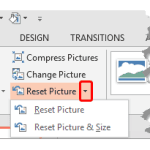 Once a picture is inserted within PowerPoint, any manipulations you make to that picture are strictly only on the surface. The appearance of the pictu...