
When a picture has been inserted, you might want to make adjustments to the picture itself so that it looks distinctive and focused. You can change a picture’s look by re-sizing, cropping, changing color values, adjust saturation, or by applying artistic effects. In this tutorial, we’ll explore the options available within PowerPoint to make these picture adjustments. When a picture is selected, the Picture Tools Format tab appears on the Ribbon.

Explore various Adjust Picture options available in PowerPoint 2010 for Windows.
Related Posts
 Among PowerPoint 2010's newest and most magical abilities is the Remove Background option that lets you remove the background from an inserted picture...
 In PowerPoint Slide Layouts are a very useful feature because they let you use a boilerplate arrangement of placeholders repeatedly, resulting in slid...
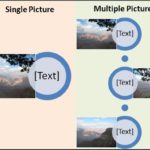 Using pictures in your presentation slides is an effective way of making your ideas more comprehensible. To make pictures even more effective, you can...
 It is easy to flip and rotate a picture on your slide. However this same flipping can be a little tricky when you use a Picture fill within a shape. T...