
 (No Ratings Yet)
 Loading...
After inserting a SmartArt graphic within PowerPoint (or converting some bulleted text to SmartArt), you might need to add more shapes to your SmartArt graphics. Fortunately, SmartArt allows you to make these additions and edits with just a click or two. You can add more shape(s) to your existing SmartArt graphics either from within the SmartArt graphic itself, or through the Text Pane. Whether you can add a new shape to a SmartArt graphic depends entirely on the SmartArt variant that you are using — some variants offer more options than the others.
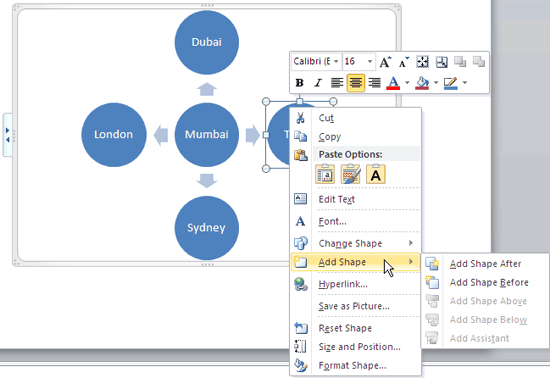
Learn how to add more shape(s) to an existing SmartArt graphics in PowerPoint 2010 for Windows
Related Posts
 Using pictures in your presentation slides is an effective way of making your ideas more comprehensible. To make pictures even more effective, you can...
 SmartArt in PowerPoint 2007 and 2010 has replaced the diagram options in previous versions of PowerPoint. SmartArt also allows you to replace bullet p...
 Once you have inserted an organization chart (org chart) within PowerPoint 2010, you might need to change the layout of the org chart. The "layout" me...
-
After inserting an Organization Chart (org chart) in PowerPoint 2011, you might need to add more shapes to your org chart. The default org chart that ...