
 (1 votes, average: 5.00 out of 5)
 Loading...
We already explored creating these three circles next to each other in PowerPoint 2003, and now we’ll do the same thing in a much easier way in PowerPoint 2007: The first circle should be filled-in full (entirely), the second circle should be half full, and the third and last circle should have no fill (empty). The first and third circles are easy, because all you need to do is ensure that the first circle has both an outline and a solid fill, and that the third circle has only an outline with no fill. The second circle though is an easy challenge that we’ll teach you to create in this one-page tutorial using PowerPoint 2007 for Windows.

Learn to create a half-circle in PowerPoint 2007 for Windows.
Related Posts
 A line (outline) in PowerPoint contains both points and segments. In this tutorial, we will show you how segments (the line area between one point and...
 The Shapes Gallery in PowerPoint consists various shapes, both open and closed. Most of the shapes in this gallery are closed shapes, for example, a R...
 You learned what Edit Points in PowerPoint are and how this option influences the look of shapes in PowerPoint. Even though the Edit Points option edi...
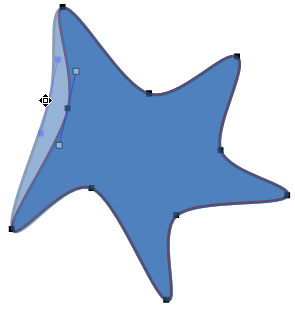 When you insert a shape within PowerPoint, you are not limited to what their default appearance looks like. You may want to change a rectangle to a rh...