
This is the print version of this page. All content is copyright Indezine.com 2000-2026.
Thoughts and impressions of happenings in the world of PowerPoint and presentations, continuously updated since 2003.
See Also:
PowerPoint and Presenting Notes
PowerPoint and Presenting Glossary
 Joel Harband heads Tuval Software Industries, based in Israel. Notes-Over, their new PowerPoint add-in creates and manages formatted speaker notes coordinated with the slide contents. Not only can notes now be related to individual slides, but you can also link them to individual slide elements like shapes. In this conversation, Joel explains more.
Geetesh: Tell us more about Notes-Over.
Joel: Notes-Over is based on the thesis that good speaker notes are the key to a good presentation. Unfortunately, we all work under deadlines and there isn’t much time to write good speaker notes. Notes-Over answers the need for specialized productivity software for speaker notes.
Notes-Over is a PowerPoint add-in that creates and manages formatted speaker notes that can be linked with slide elements. The note sticks to the slide element, so that when you rearrange or add bullet text items on the slide, the notes are automatically reordered. Notes attached to slide graphics or unattached notes are reordered by up/down arrow controls. A full-featured notes editor lets you dictate notes and cut and paste them between elements. The notes appear on the PowerPoint notes pane and can be distributed as handouts and saved with the presentation.
Geetesh: How did Notes-Over evolve, and how does it integrate with your other products?
Joel: I’m glad you asked that question. The original idea for Notes-Over came from Scott Burmester of Microsoft. When we told him about our Speech-Over product, he right away said: Oh, it reads the PowerPoint notes aloud. The product didn’t exactly work like that at the time, but the idea was so great and simple that now all three products in the Speech-Over Studio suite are based on speaker notes text.
The three products, Notes-Over, Record-Over, and Speech-Over, are organized like a fugue: Notes-Over is standalone, Record-Over includes Notes-Over, and Speech-Over includes Record-Over and Notes-Over.
Altogether, the products broaden the verbal/textual capability of PowerPoint and, at the same time, integrate the verbal with the visual. They support the entire life cycle of a presentation: Notes-Over supports preparation and delivery and Record-Over and Speech-Over support stand-alone slide shows and post-presentation leave-behinds for colleagues that didn’t attend.
The views and opinions expressed in this blog post or content are those of the authors or the interviewees and do not necessarily reflect the official policy or position of any other agency, organization, employer, or company.
Filed Under:
Interviews
Tagged as: Add-in, Interviews, Joel Harband, PowerPoint
Sharing pictures is a great way to show visual content like digicam pictures. These pictures can be sent as e-mail attachments, photo albums, slide shows, etc. Or you could use Flash Slide Show Maker, a free software that creates Flash-based photo slide shows with ease.
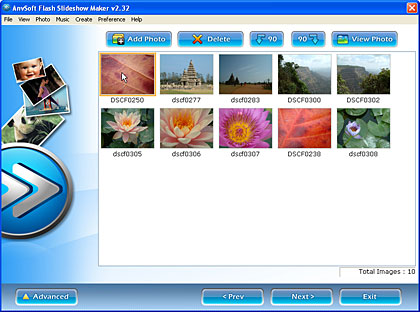
Read our review of Flash Slide Show Maker.
Filed Under:
Companion Programs
Tagged as: Companion, Digital Cameras, Flash, Review, Tutorials

PowerPoint MVP Kathy Jacobs has a new blog where she talks about PowerPoint, books, life, and anything else. Right now, she is telling you about:
Her blog is called Vitamin CH, and CH stands for chocolate!
Filed Under:
PowerPoint All Versions
Tagged as: Kathy Jacobs, Resources
Julie Larson-Green had presented her work to Bill Gates earlier in her career, and like just about everyone in her shoes, had to manage some butterflies beforehand. But in January 2005, the stakes were higher. The 39-year-old program manager was out to persuade the company’s chairman to radically overhaul one of the most profitable products in the history of mankind: Microsoft Office. The drop-down menus and toolbars that Gates had personally helped craft in the ’80s had to go, she would tell him, to be replaced by an onscreen Ribbon loaded with options that would dynamically change according to what you were poised to do next.

Read more on the Newsweek site.
Filed Under:
Thoughts
Tagged as: Microsoft Office, Office, PowerPoint 2007

Paul Stannard is the CEO of SmartDraw, a provider of business graphics software. Stannard started the company in 1994 with no debt, no capital, and no outside funding. Recognized for its explosive growth by Deloitte & Touche and Inc Magazine, SmartDraw generates more than 2 million visitors each month. It’s been a while since we interviewed Paul. This small conversation focuses on SmartDraw’s newest release. SmartDraw 2007.
Geetesh: Tell us more about SmartDraw 2007. We also noticed that the tabs do look like you are making this version of SmartDraw a seamless integration with Office 2007.
Paul: SmartDraw is the world’s most popular business graphics software and makes it easy for anyone to create professional-quality graphics, such as flowcharts, org charts, floor plans, and more, in minutes — no experience or training required. Each day more than 6000 people install SmartDraw for the first time and more than 10 million users have downloaded SmartDraw.
Our market is made up of millions of computer users who want to create attractive and effective business graphics, but lack the time and expertise to learn complicated graphics software designed for technical people. The key to SmartDraw’s success is its unique SmartTemplateTM technology that makes creating business graphics as easy as typing a letter with a word processor. SmartDraw has developed hundreds of SmartTemplates for every conceivable type of business graphic. Each SmartTemplate loads a specific SmartPanelTM command set and the associated SmartHelpTM step-by-step instructions. By using a SmartTemplate, a user becomes an instant expert on how to make a complex diagram and with SmartDraw’s gallery of professionally designed styles, an instant graphic designer as well.
We have always supported Office and that goes for Office 2007 too. Many of our graphics end up in PowerPoint presentations and Word documents, and we have always performed as a standard Office-like application. We’ve incorporated one-click transfer to all Office applications from our toolbar so it simply made sense to support a similar interface so users can learn one standard.
Both Office 2007 and SmartDraw 2007 use the new ribbon interface for the same reason: Too many of our users were unable to find the commands and features they were looking for because they were buried in menus and dialogs. Microsoft has indicated than 80% of the features requested for Word were already in Word. The new ribbon interface solves this problem by making commands more accessible, and, like Microsoft, our testing has confirmed that users find it easier to use.
Geetesh: How do you typically use SmartDraw in your everyday work — at the office and home?
Paul: I use it for just about everything. Once you get your hands on a tool like SmartDraw you wonder how you lived without it.
I use it extensively in business planning and communicating those plans to co-workers. I make flow charts, organization charts, Gantt charts, and calendars to explain processes, organizational changes, and project schedules. We used it to plan our move to our current offices. We space-planned using SmartDraw and added layers for networking and furniture to the floor plan.
I also use it for personal projects like my Christmas letter and gift certificate I designed for my kids. My wife uses it to lay out photo pages for an album.
I am always finding new uses for it and even if I don’t know the rules for a particular type of graphic, the SmartTemplate makes me an expert in a few minutes.
The views and opinions expressed in this blog are those of the authors and do not necessarily reflect the official policy or position of any other agency, organization, employer, or company.
Filed Under:
Interviews
Tagged as: Interviews, Office 2007, Paul Stannard, PowerPoint, SmartDraw
Microsoft and the Office logo are trademarks or registered trademarks of Microsoft Corporation in the United States and/or other countries.