
This is the print version of this page. All content is copyright Indezine.com 2000-2026.
Thoughts and impressions of happenings in the world of PowerPoint and presentations, continuously updated since 2003.
See Also:
PowerPoint and Presenting Notes
PowerPoint and Presenting Glossary
Applying a packaged design can greatly streamline the design process, but it comes at a price. Although it does address a key issue, it may not be the answer for presenters who want to truly stand out from the pack.
In this chapter, Tom Bunzel examines the PowerPoint Design Templates and looks more deeply into proven design principles and how to apply them to our own work.

Read more on the Informit site.
Filed Under:
Books
Tagged as: Books, Design, Education, PowerPoint, Tom Bunzel
By far, the only way to make text stand out in PowerPoint is by using color and animation. And even animation is not uncomplicated — presentation designers often have to tweak PowerPoint’s animation timings and the timeline to create out-of-the-ordinary animation effects. PowerPlugs Animator from CrystalGraphics tries to provide a solution — it includes a library of animation styles that enhance PowerPoint’s built in effects — these can also be imparted to text with a few clicks.
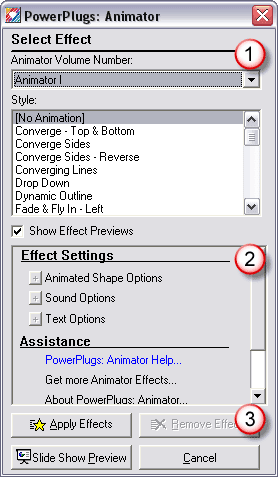
Read the Indezine review of PowerPlugs Animator.
Filed Under:
Add-ins
Tagged as: Add-in, Animation, CrystalGraphics, PowerPoint

Vivian MacPartland (no, that’s not her picture. She calls it her avatar) is part of Business Development at Opuzz, a source for royalty-free music. Opuzz customers include corporations and businesses, educators, producers, TV and radio networks, developers for web, games and multimedia, retailers and business owners and others. In this conversation, Vivian discusses Opuzz, their music, and the use of music tracks in PowerPoint presentations.
Geetesh: Vivian, tell us more about Opuzz and how it evolved?
Vivian: Let me start by telling you how Opuzz is different. One main feature of the Opuzz Royalty Free Music Library is our consistency in providing multiple edit versions option and music loops which gives our clients flexibility where needed. That way, they can mix and match, insert transitional stinger intros and outros, as well as clearly define segments of their presentation with appropriate music. Every track in our stock music library is available in edit versions of 10, 15, 30, 60 seconds, full mix, alternate mixes, stingers, and multiple loop versions.
Filed Under:
Interviews
Tagged as: Interviews, PowerPoint, Sounds
Common menus and toolbars have been replaced by the Ribbon, a strip of commands at the top of the screen that make sense only in the context of what you are doing. In Excel, for example, you’ll see commands for editing a chart only if a chart appears in your spreadsheet.
The revamp is worthwhile for anyone who got lost navigating to commands buried inside previous versions. And it’s nice to be able to preview editing changes before committing to them.

Edward Baig explains more on the USA Today site
Filed Under:
Thoughts
Tagged as: Microsoft, Microsoft Office, PowerPoint, PowerPoint 2007

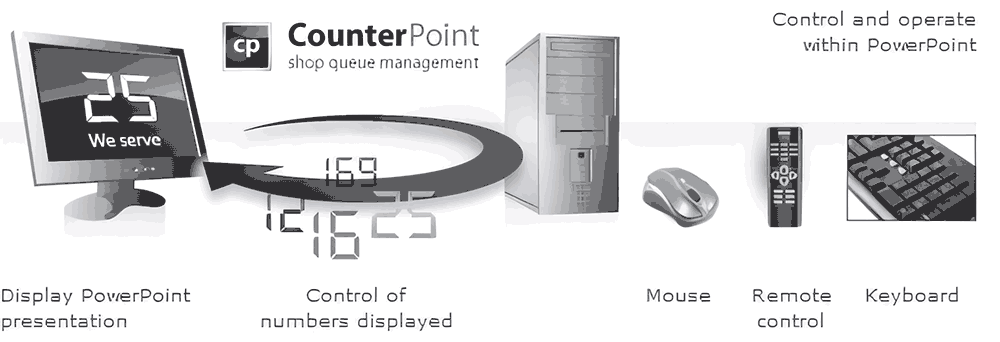
CounterPoint takes the omnipresent symbol of today’s retail driven world. The counter display and merges it with a PowerPoint presentation so that you can create more interactive counter displays that entertain and inform while you wait for your turn.
In this Indezine exclusive, we have Kurt Dupont who heads PresentationPoint, creators of CounterPoint, DataPoint, and another amazing PowerPoint add-ins.
Geetesh: Tell us more about CounterPoint.
Kurt: Well, CounterPoint is our latest addition to our product range of dynamic presentations. We all know that number display (Now serving 34) in a shop or takeaway restaurant.
Boring and simple as it can only display a number from 1 to 99 and has no additional features. No additional information can be displayed and it is only used in peak times.
CounterPoint now offers that same functionality by using Microsoft PowerPoint. The big advantage here is that you can format your counter as you which and add general-purpose or advertising slides to the slide show.

You can now run a normal PowerPoint slide show with company and product information, promotions, etc, all combined with your counter. As soon as an employee presses the button of a mouse — this could also be a PowerPoint presenter remote control — a counter slide is shown, the running counter is incremented and a sound is played. After an idle time that you can configure, the counter slide is made invisible and the normal slide show continues. You can even use multiple service desks by sharing the common number.
Geetesh: Give us some case studies about organizations using CounterPoint.
Kurt: A trendy Belgian takeaway restaurant was looking for a counter display system with more functionality. The normal counter display they already had (costs EUR 400) was simply replaced by a normal PC with a 20″ TFT monitor. This was even an old computer that was not used anymore. CounterPoint was installed and the owner started playing with the slide show. She created a presentation of some 20 slides with meals and promotional information. At the end, a CounterPoint slide was added. Just as easy as that. Now the system is running continuously and serves as a counter display system in peak times.
The advantage that she saw was that they can better control the waiting queue in the restaurant and animate the customers with promotional information, which also leads to more sales.
At the end the customers are entertained and informed, the waiting queue is managed correctly (first in, first out), promotions are displayed and finally, the employees are better organized and more effective. And all of this with CounterPoint and a spare computer.
Filed Under:
Interviews
Tagged as: Add-in, Interviews, Kurt Dupont, PowerPoint, PresentationPoint
Microsoft and the Office logo are trademarks or registered trademarks of Microsoft Corporation in the United States and/or other countries.