
This is the print version of this page. All content is copyright Indezine.com 2000-2026.
Thoughts and impressions of happenings in the world of PowerPoint and presentations, continuously updated since 2003.
See Also:
PowerPoint and Presenting Notes
PowerPoint and Presenting Glossary
Text is an important element in your PowerPoint slides, and most of the time, text alignment is taken care by the defaults set in your presentation template. You type or paste some text in a placeholder, and the text may align left, right, or even center, based upon the choices made in the template or Theme of the presentation. However, there are times when you want to make alignment choices, not just for text in placeholders, but also for text in text boxes, shapes, charts, tables, and anywhere else.
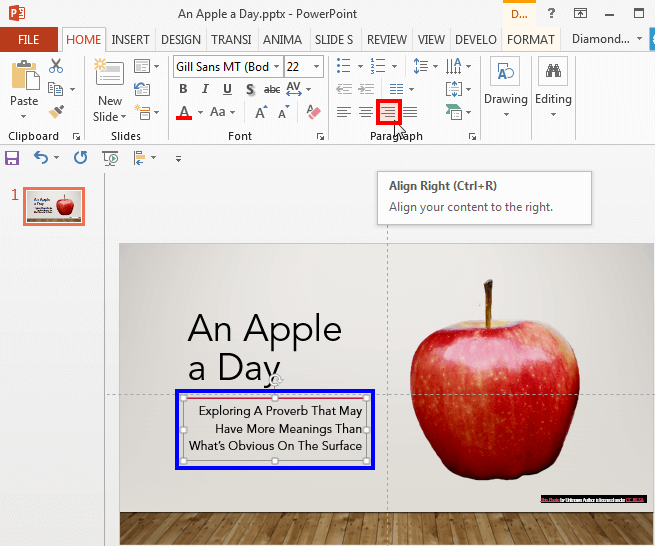
Align text in PowerPoint 2013 for Windows.
Filed Under:
PowerPoint 2013
Tagged as: Align, Microsoft Windows, Office 2013, PowerPoint 2013, Text, Tutorials
Comments Off on Text Alignment in PowerPoint 2013 for Windows
 Jessica Miller is a digital marketing manager at easyPDF.com with over 10 years of experience. She worked as a part of the marketing team promoting different document management solutions. Later on, she decided to try herself in a more dynamic start-up environment, that resulted in her being in charge at easyPDF. In her free time, she enjoys hiking, birdwatching and baking cakes.
In this conversation, Jessica talks about easyPDF.
Geetesh: Can you tell us more about easyPDF, and what motivated you to create this online app that lets anyone use basic and advanced PDF features?
Jessica: easyPDF is an all-in-one PDF conversion suite that can help with converting almost any kind of document to and from PDF. It is intended to be a free alternative to almost any pricey desktop software, with more than a few benefits – no installation required, easy-to-use and with the same functionality as desktop software. There are a plethora of business-only oriented PDF solutions out there, but that isn’t what easyPDF is all about.
Filed Under:
Interviews
Tagged as: easyPDF, Interviews, Jessica Miller, PDF, PDF to PowerPoint
Comments Off on easyPDF: Conversation with Jessica Miller
When a shape is inserted into a PowerPoint slide, its default appearance is related to the points that it contains. Alter the points, and you can change the original shape to anything you want. PowerPoint’s native Edit Points tool makes it almost a drawing program that provides you the option to play with vertexes (points), handles, etc. This is very similar to what you would do in Adobe Illustrator, CorelDRAW or another drawing program. By using the Edit Points tool, you can change a rectangle to a rhombus, or even edit a curved or freeform line differently.

Alter a shape using the Edit Points option in PowerPoint 2016 for Mac.
Filed Under:
PowerPoint 2016
Tagged as: Edit Points, Mac, Office 2016, Office for Mac, PowerPoint 2016, PowerPoint for Mac, Shapes, Tutorials
Comments Off on Edit Points for Shapes in PowerPoint 2016 for Mac
We first explore Arial Unicode MS, a font that’s similar yet different than the Arial font installed on most systems. We then explore some questions about Pecha Kucha presenting, and their answers. We then explore how you can convert Text to Outlines in PowerPoint with a free add-in from Jamie Garroch.
PowerPoint 2016 for Windows users can learn about Working with Custom Groups in Ribbon Tabs, Adding Commands to Custom Groups, and how to Reset, Export, and Import Ribbon Customizations. PowerPoint 2016 for Mac users will explore Text Fills and Reordering Shapes. And if that wasn’t enough for this week, make sure you do not miss the quotes, press releases, and templates released in the last week.

Stay informed about updated tutorials and happenings related to PowerPoint and presenting.
Filed Under:
Ezine
Tagged as: Ezine, Indezine, News, PowerPoint
Comments Off on PowerPoint and Presenting News: November 6, 2018
If your PowerPoint slide has umpteen shapes or slide objects, you may find that some of these objects are hidden or overlapped. Or you probably do not know if there are any objects hidden behind the large shape or picture on your slide? How can you tackle this issue? It’s easy to solve this problem if you know how to work with Reorder options. These Reorder options allow you to bring forward any shape or slide object so that it stays right on top of all other objects. Similarly, you can send any shape or slide object behind everything else on your slide.

Learn how to change the order of shapes and other slide objects in PowerPoint 2016 for Mac.
Filed Under:
PowerPoint 2016
Tagged as: Mac, Office 2016, Office for Mac, PowerPoint 2016, PowerPoint for Mac, Reorder, Shapes, Tutorials
Comments Off on Reorder Shapes in PowerPoint 2016 for Mac
Microsoft and the Office logo are trademarks or registered trademarks of Microsoft Corporation in the United States and/or other countries.