
This is the print version of this page. All content is copyright Indezine.com 2000-2026.
Thoughts and impressions of happenings in the world of PowerPoint and presentations, continuously updated since 2003.
See Also:
PowerPoint and Presenting Notes
PowerPoint and Presenting Glossary
This tutorial is about moving text boxes rather than text placeholders. Typically text placeholders for regular text content or even slide titles are located in the same position on successive slides. So, if you really do need to move a text placeholder, do it within the Slide Master so that this change of position happens on all slides, providing a consistent look to your presentation.

Learn how to move text boxes on a slide in PowerPoint 2016 for Mac.
Filed Under:
PowerPoint 2016
Tagged as: Mac, Office 2016, Office for Mac, PowerPoint 2016, PowerPoint for Mac, Text Boxes, Tutorials
Comments Off on Move Text Boxes on a Slide in PowerPoint 2016 for Mac
Do you have a secret slide with useful information that you would rather not delete? But what if you show this slide to your audience inadvertently? How do you cope with this problem? The solution is easy: you just hide the slide. Hidden slides don’t show up in Slide Show view, but they are still available to edit and to possibly unhide when you are ready to show that slide to the world.
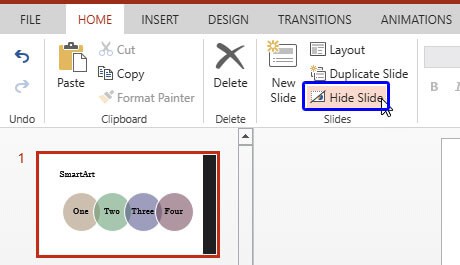
Learn to hide and unhide slides in PowerPoint for the Web.
Filed Under:
PowerPoint for the Web
Tagged as: Hide, PowerPoint for the Web, Slides, Tutorials, Unhide
Comments Off on Hide/Unhide Slides in PowerPoint for the Web

Slava Uskov is VP of Product Development at iSpring Solutions, an eLearning software company. Together with his team, he defines the product strategy and roadmap, conducts thorough market and customer research, and decides on new features based on actual user needs.
In today’s conversation, Slava talks about the new iSpring Suite 9 and how it helps PowerPoint users create robust eLearning courses and assessments right in their preferred authoring tool.
Filed Under:
Interviews
Tagged as: Add-in, eLearning, Interviews, iSpring, Online Presentations, PowerPoint, Slava Uskov
Comments Off on iSpring Suite eLearning Authoring Toolkit for PowerPoint: Conversation with Slava Uskov
What does the word “shape” mean to you? Do you imagine a square, a circle, a heart, or even a smiley face? Yes, all those are shapes, as are the hundreds of other recognizable outlines or figures that we call shapes in our daily conversations. Shapes play a significant role within slides you create for your PowerPoint presentation. In more ways that you may want to count, shapes are like the building blocks of almost anything you do on your PowerPoint slides. PowerPoint for the Web provides hundreds of shapes efficiently categorized into 8 types. You can do so much with these shapes such as formatting them with fills, lines, and effects.

Learn about different types of shapes in PowerPoint for the Web.
Filed Under:
PowerPoint for the Web
Tagged as: PowerPoint for the Web, Shapes, Tutorials
Comments Off on Types of Shapes in PowerPoint for the Web
We begin with an exclusive post by Claudyne Wilder who explains how Argentine Tango skills can help you become a better presenter. We also look at one of PowerPoint’s powerful but least documented features: combining animation with the slide background fill in our Animated Slide: Rotated Circles with Background Fill feature. We also explore how callouts can be a bullets alternative in PowerPoint slides.
PowerPoint 2016 for Windows will learn about the Task Pane. PowerPoint Online can learn about Picture Styles, Resizing, Rotating, and Flipping Pictures, the Task Pane, and Changing Slide Layouts. And if that wasn’t enough for this week, make sure you do not miss the quotes, press releases, and templates released in the last week.

Stay informed about updated tutorials and happenings related to PowerPoint and presenting.
Filed Under:
Ezine
Tagged as: Ezine, Indezine, News, PowerPoint
Comments Off on PowerPoint and Presenting News: September 18, 2018
Microsoft and the Office logo are trademarks or registered trademarks of Microsoft Corporation in the United States and/or other countries.