
This is the print version of this page. All content is copyright Indezine.com 2000-2026.
Thoughts and impressions of happenings in the world of PowerPoint and presentations, continuously updated since 2003.
See Also:
PowerPoint and Presenting Notes
PowerPoint and Presenting Glossary
Imagine you inserted a picture in PowerPoint for the Web, and then applied various picture editing options to enhance its appearance. For example, you may have added Picture Styles. Probably, you then added both Fade and Zoom animations, synced them to happen together, and also timed the animations to occur at a particular speed. You may find yourself often doing these same tasks: adding all sorts of picture edits and animating them.

Learn how to change one picture into another in PowerPoint for the Web.
Filed Under:
PowerPoint for the Web
Tagged as: Pictures, PowerPoint for the Web, Tutorials
Comments Off on Change Picture in PowerPoint for the Web
Are you looking for copyright-free pictures that you can use in presentations you create in PowerPoint for the Web, the browser-based version of PowerPoint? You can use the Online Pictures option. This feature is very helpful, because you get access to a large amount of visual content, some of which also include Creative Commons pictures. And all this happens within PowerPoint for the Web, within your web browser.
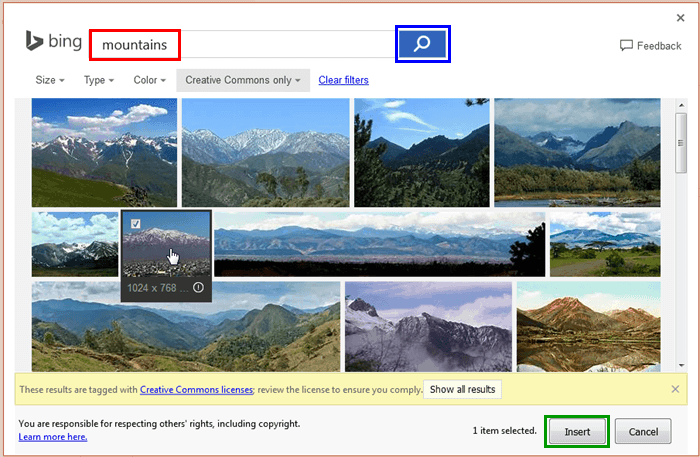
Learn how to insert online pictures on a slide in PowerPoint for the Web.
Filed Under:
PowerPoint for the Web
Tagged as: Online Pictures, Pictures, PowerPoint for the Web, Tutorials
Comments Off on Insert Online Pictures in PowerPoint for the Web
We first look at Paper Plane graphics. These are silhouette-style, and represent aims, ambitions, goals and targets–and you can use these paper plane graphics in your slides to denote any such achievement.
PowerPoint 2016 for Windows users can learn about Transparency for Shape Outlines, Artistic Effects for Picture Backgrounds, and Changing Default Shape Attributes. PowerPoint for Mac users can learn how to Select, Deselect, View, and Hide Shapes Using the Selection Pane. PowerPoint Online users can explore Inserting Shapes. And if that wasn’t enough for this week, make sure you do not miss the quotes, press releases, and templates released in the last week.

Stay informed about updated tutorials and happenings related to PowerPoint and presenting.
Filed Under:
Ezine
Tagged as: Ezine, Indezine, News, PowerPoint
Comments Off on PowerPoint and Presenting News: September 4, 2018
It is true that both pictures and words are important, and they both play complementary roles. If you had to choose just one of them; then seeing is a much more important part of presenting. Presentations, by their very nature, are meant to be seen since they evoke actions such as project, display, or broadcast; and all of these actions represent visual media. Text and speaking are important too, but you can be more effectively heard and remembered if your content includes both text and pictures.

Learn how to insert pictures in PowerPoint for the Web.
Filed Under:
PowerPoint for the Web
Tagged as: Insert, Pictures, PowerPoint for the Web, Tutorials
Comments Off on Insert Pictures in PowerPoint for the Web
Although it’s not too common to have bright and vivid picture backgrounds for your slides, it is not unheard of. You will often see slides that are saturated with bright, sparkling colors that make anything placed on the slide almost impossible to stand apart. So, do you really want your slide background “to not be in the background?” If not, then the techniques explained on this page will help.

Explore picture corrections and color options for slide backgrounds in PowerPoint 2016 for Windows.
Filed Under:
PowerPoint 2016
Tagged as: Background, Color, Corrections, Microsoft Windows, Office 2016, Pictures, PowerPoint 2016, Tutorials
Comments Off on Corrections and Color Options for Picture Backgrounds in PowerPoint 2016 for Windows
Microsoft and the Office logo are trademarks or registered trademarks of Microsoft Corporation in the United States and/or other countries.