
This is the print version of this page. All content is copyright Indezine.com 2000-2026.
Thoughts and impressions of happenings in the world of PowerPoint and presentations, continuously updated since 2003.
See Also:
PowerPoint and Presenting Notes
PowerPoint and Presenting Glossary
When your presentation is something you deliver, it rarely matters if you have any content invisible to your audiences, such as your slide notes, comments, and document properties. Typically, none of these are visible to your audience, and you are free to add any information in these areas that will enable you to be better prepared to deliver your slides. However, if you need to share the same PowerPoint presentation with colleagues, or even publish it online, the scenario will be different. Most users don’t even think twice about all this information simply due to lack of awareness. They should because most of this content may include hidden data or information that you or your company may not want to share.

Learn how to use the Inspect Document feature in PowerPoint 2013 for Windows.
Filed Under:
PowerPoint 2013
Tagged as: Inspect, Microsoft Windows, Office 2013, PowerPoint 2013, Tutorials
Comments Off on Inspect Document in PowerPoint 2013 for Windows
Similar to the Screenshot option that lets you capture still screenshots, you can use the new Screen Recording option in PowerPoint 2013 for Windows to quickly record a video clip of your onscreen activity, from within the program. Do note though that this Screen Recording option is among the new features introduced in PowerPoint 2016, and also added as part of the February 2015 updates to PowerPoint 2013. You will only find this option in PowerPoint 2013 if you have installed all recent updates.

Learn about the screen recording option in PowerPoint 2013 for Windows.
Filed Under:
PowerPoint 2013
Tagged as: Microsoft Windows, Office 2013, PowerPoint 2013, Screen Recording, Tutorials, Video
Comments Off on Screen Recording in PowerPoint 2013 for Windows
Kurt Dupont of PresentationPoint teaches how you can create a timer in PowerPoint — he explains two ways to do so.
PowerPoint 2016 for Windows users can learn about the new six chart types introduced in this version. You can also learn about aligning text within shapes and text boxes, how you can create cookie-cutter shapes to end up with fantastic, triangular tables, and also how you can align objects precisely on the center of a slide. We also explore the concepts of grouping, ungrouping, and regrouping. Finally, do not miss the new press releases and templates of this week.

Read Indezine’s PowerPoint and Presenting News.
Filed Under:
Ezine
Tagged as: Ezine, Indezine, News, PowerPoint
Comments Off on PowerPoint and Presenting News: July 19, 2016
Have you worked with the Screenshot option in previous versions such as PowerPoint 2010 and PowerPoint 2013? This option allowed you to add a screenshot from within PowerPoint. PowerPoint 2016 goes a step further with the new Screen Recording option that allows you similarly to record a video clip of your onscreen activity, again from within the program.

Learn about the screen recording option in PowerPoint 2016 for Windows.
Filed Under:
PowerPoint 2016
Tagged as: Microsoft Windows, Office 2016, PowerPoint 2016, Screen Recording, Tutorials, Video
Comments Off on Screen Recording in PowerPoint 2016 for Windows
So, what exactly does grouping within PowerPoint mean? And what are the ungrouping and regrouping options meant to do further? The moment you select a slide object such as a shape on a PowerPoint slide, you will see some selection handles that indicate the shape is selected. Select another shape while the first one is still selected, and you see two sets of selection handles. If you need to similarly select many shapes on a slide often, this sort of selection may become cumbersome and waste so much time. In that case, it’s best you select all the shapes you need to work with, and then combine them into one “group” of shapes.
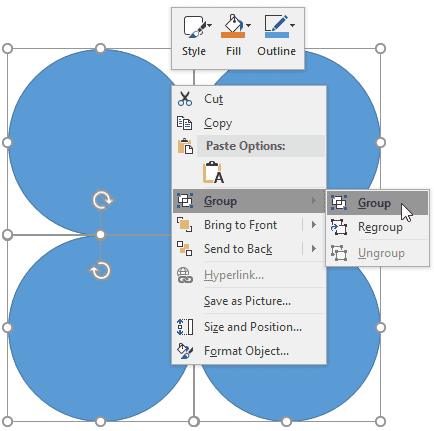
Learn how to group, ungroup, and regroup shapes in PowerPoint 2016 for Windows.
Filed Under:
PowerPoint 2016
Tagged as: Group, Microsoft Windows, Office 2016, PowerPoint 2016, Regroup, Shapes, Tutorials, Ungroup
Comments Off on Group, Ungroup, and Regroup Shapes in PowerPoint 2016 for Windows
Microsoft and the Office logo are trademarks or registered trademarks of Microsoft Corporation in the United States and/or other countries.