
This is the print version of this page. All content is copyright Indezine.com 2000-2026.
Thoughts and impressions of happenings in the world of PowerPoint and presentations, continuously updated since 2003.
See Also:
PowerPoint and Presenting Notes
PowerPoint and Presenting Glossary
We bring you icons again, and also some bulb graphics!
We explore PCB files that customize your PowerPoint interface — we explore versions 2013, 2010 and 2007. You can also read about changing Presentation Aspect Ratio from Standard to Widescreen in PowerPoint 2010. We continue our tutorial series on Sway, another presentation tool from Microsoft. Finally, don’t miss the new discussions and templates of this week!

Read Indezine’s PowerPoint and Presenting News.
Filed Under:
Ezine
Tagged as: Ezine, Indezine, News, PowerPoint
Comments Off on PowerPoint and Presenting News: November 17, 2015
The Task Pane is a docked area within the PowerPoint 2016 interface that provides more options than dialog boxes. Also, unlike most dialog boxes which cover the Slide Area, you can view both the active slide(s) and the Task Pane at the same time. The Task Pane, therefore, provides a more streamlined experience. In fact, all the options within the Format dialog boxes from older versions of PowerPoint are now available within the new Format Task Panes in PowerPoint 2016.

Learn about how the Task Pane works in PowerPoint 2016, and how you can toggle its view.
Filed Under:
PowerPoint 2016
Tagged as: Interface, Office 2016, PowerPoint 2016, Task Pane, Tutorials, View
Comments Off on Task Pane in PowerPoint 2016 for Windows
Many new changes have happened within PowerPoint 2016 and several other versions released in the past. However, one thing that has not changed in the last 20 years is PowerPoint’s tri-paned interface! So why is the interface called tri-paned — are there three distinct regions within the PowerPoint 2016 interface? Yes — the Slide area is one of three principal regions in PowerPoint 2016 — the other two are the Slides Pane and the Notes Pane.
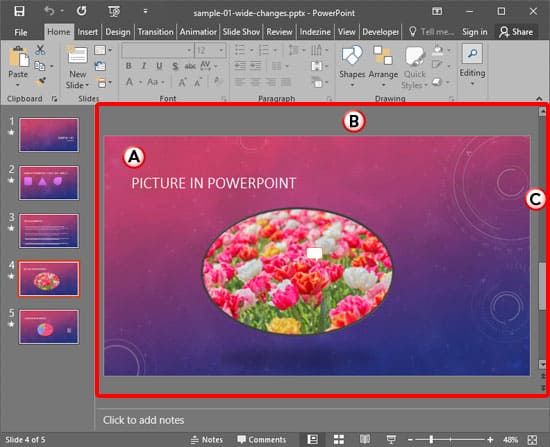
Learn about the Slide Area in PowerPoint 2016 for Windows.
Filed Under:
PowerPoint 2016
Tagged as: Interface, Office 2016, PowerPoint 2016, Slide Area, Tutorials, View
Comments Off on Slide Area in PowerPoint 2016 for Windows
PowerPoint add-ins help in adding new capabilities that can polish your presentation in many ways. But when the time comes to uninstall these add-ins for whatsoever reason, you might be surprised to find their menu customizations still exist! Click those menu extensions and nothing may happen — but these menu options are still there! In another scenario, you may have customized your PowerPoint menus and toolbars to a large extent — and may now want to restore everything to a pristine state — almost like how the interface looked when you first installed PowerPoint.

Learn how to remove customizations from PowerPoint’s PCB files in PowerPoint 2007.
Filed Under:
PowerPoint 2007
Tagged as: Office 2007, PCB, PowerPoint 2007, Tutorials
Comments Off on Removing Customizations from PCB Files in PowerPoint 2007
In PowerPoint 2010, the default slide ratio is 4:3 (Standard). This can be a challenge, especially if you have been asked to create a presentation that has a 16:9 (Widescreen) ratio. Yes, you can easily change the ratio later but it is best to start creating the slide from the beginning in the slide aspect ratio that you need. Although PowerPoint 2010 lets you change the ratio later, the process is nowhere as intuitive as it is when you change the presentation aspect ratio from Widescreen to Standard in PowerPoint 2013. Still, let’s see how PowerPoint 2010 fares.

Learn how to change aspect ratio from widescreen to standard in PowerPoint 2010 for Windows.
Filed Under:
PowerPoint 2010
Tagged as: Aspect Ratio, Office 2010, PowerPoint 2010, Slide Size, Tutorials, Widescreen
Comments Off on Change Aspect Ratio from Widescreen to Standard in PowerPoint 2010 for Windows
Microsoft and the Office logo are trademarks or registered trademarks of Microsoft Corporation in the United States and/or other countries.