
This is the print version of this page. All content is copyright Indezine.com 2000-2026.
Thoughts and impressions of happenings in the world of PowerPoint and presentations, continuously updated since 2003.
See Also:
PowerPoint and Presenting Notes
PowerPoint and Presenting Glossary
By Peter Zvirinsky
Do you want to give a fresh look to your slides? Do you want them to stand out from the crowd?
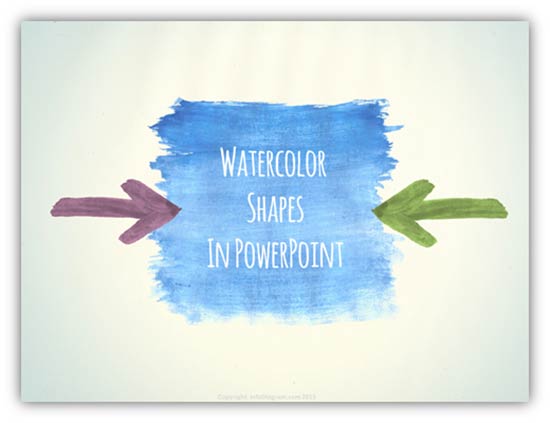
Then you should consider adding watercolor elements such as stripes or arrows. These are great to express uniqueness and creativity.
Such an aquarelle painting style is one of the new emerging trends in graphic design. We see such effects also in business presentation design. Maybe it’s even the new successor of today’s ever-present flat design look? Time alone will tell. Yet, this is definitely a style you should consider if you want to stand out from the crowd.
For a start, here is a slide I made using a watercolor shape.
Filed Under:
Guest Posts
Tagged as: Graphics, Guest Post, Infodiagram, Peter Zvirinsky, PowerPoint, Visuals, Watercolor
PowerPoint 2016 continues providing several views that enable you to view and edit your slides. Unarguably, Normal view is the default and most often used view. This view displays one slide at a time in the Slide Area, and is used mainly for editing and creating slides, and shows PowerPoint’s typical tri-pane interface that includes the Slides Pane, the Slide Area, and the Notes Pane.

Learn about Normal view in PowerPoint 2016 for Windows.
You May Also Like: Views in PowerPoint 2016 for Windows | Slide Master View in PowerPoint 2016 for Windows | Presenter View in PowerPoint 2016 for Windows
Filed Under:
PowerPoint 2016
Tagged as: Interface, Microsoft Windows, Normal View, Office 2016, PowerPoint 2016, Tutorials, View
Comments Off on Normal View (Editing View) in PowerPoint 2016 for Windows
PowerPoint 2016’s work area below the Ribbon continues to be tri-paned. These three panes comprise the Slides Pane, the Slide Area, and the Notes Pane. The Slides Pane is the thin strip on the left side of the PowerPoint 2016 interface that contains thumbnails of all your slides. Within Normal view, the Slide Pane allows you to move slides easily from one position to the other just by dragging and dropping.

Learn about the Slides Pane in PowerPoint 2016 for Windows.
Filed Under:
PowerPoint 2016
Tagged as: Interface, Office 2016, PowerPoint 2016, Slides Pane, Tutorials, View
Comments Off on Slides Pane in PowerPoint 2016 for Windows

Kurt Dupont, based out of Belgium heads PresentationPoint, a company that creates several amazing PowerPoint add-ins. After his Computer Science studies, Kurt started with Andersen Consulting (Accenture nowadays) in Brussels. After 3 years he moved to the Brussels Airport Terminal Company that runs the Brussels airport – this last placement inspired the start-up of Take-off (now known as PresentationPoint) in 1998.
In this conversation, Kurt discusses Dynamic WEATHER, an add-in that lets you spice your PowerPoint slides with weather conditions and forecasts.
Geetesh: Can you tell us more about Dynamic WEATHER, and how this evolved as an (or what motivated you to create this) add-in for PowerPoint?
Kurt: Dynamic WEATHER is a PowerPoint add-in that allows you to display real-time weather information in your slide show. You can add one or multiple cities worldwide to the weather watch list and the add-on will collect the current weather conditions and weather forecasts of the next coming days.
After that, you add a simple text box to your slide and you can display things like current temperature, sunrise and sunset, wind speed, visibility and many more. Or display tomorrow’s high and low temperatures.
Or insert a picture and link it to today’s weather conditions so that you get a nice icon, representing the weather type. Or display the expected weather type for tomorrow or for day after tomorrow.
Then you play the slide show and Dynamic WEATHER will update the information continuously. Tomorrow’s predictions become today’s conditions. Your slide show is a personal and localized weather channel on your computer.
We had this weather information already in our DataPoint product. But that is for “experts” only. With this new and simple Dynamic Weather add-on, everyone can show real-time weather information now on their slides.

Geetesh: What scenarios do you look at when you think about intended uses for Dynamic WEATHER?
Kurt: You could spice your sales or project presentation next time with live news and weather information, but I don’t expect much change there (LOL). But some people use a Microsoft PowerPoint presentation as a stand-alone and ever-running kiosk slide show to welcome people at the reception desk, company or building. Think about a gas station, or theater. Next to the prices in a gas station, you also show traffic conditions and weather information. At a theater, you display where which event is scheduled, accompanied with weather information and current time.

Of course, people will not set up kiosk presentations everywhere with weather information alone. No, people add time and live news and live weather information, to the normal messages on their slides, in order to make it more attractive. A slide show with security information in a factory, becomes boring very fast. But more viewers can be reached when you add time and weather onto it. Only because the information is continuously changing, people will look up more frequently.
The views and opinions expressed in this blog post or content are those of the authors or the interviewees and do not necessarily reflect the official policy or position of any other agency, organization, employer, or company.
Filed Under:
Interviews
Tagged as: Add-in, Dynamic Weather, Interviews, Kurt Dupont, PowerPoint, PresentationPoint
Comments Off on Dynamic WEATHER: Conversation with Kurt Dupont
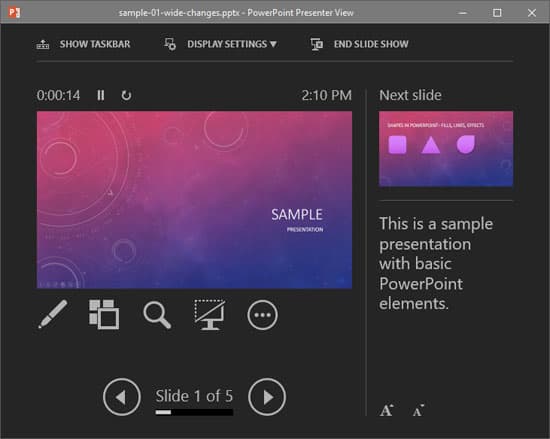
PowerPoint 2016’s Presenter View is a purpose-built view that accompanies Slide Show view. This view is beneficial in an environment that has at least two displays such as a laptop and a projector. The projector then shows the actual slides – that is what we commonly call Slide Show view. However, you see the Presenter view on the laptop — Figure 1 below shows you Presenter view. Notice that you get to see much more than just the slide — rest assured that the audience viewing the projector output see only the slide!
Learn about Presenter View in PowerPoint 2016 for Windows.
You May Also Like: Normal View in PowerPoint 2016 for Windows | Outline View in PowerPoint 2016 for Windows | Slide Sorter View in PowerPoint 2016 for Windows
Filed Under:
PowerPoint 2016
Tagged as: Office 2016, PowerPoint 2016, Presenter View, Slide Show View, Tutorials
Comments Off on Presenter View in PowerPoint 2016 for Windows
Microsoft and the Office logo are trademarks or registered trademarks of Microsoft Corporation in the United States and/or other countries.