
This is the print version of this page. All content is copyright Indezine.com 2000-2026.
Thoughts and impressions of happenings in the world of PowerPoint and presentations, continuously updated since 2003.
See Also:
PowerPoint and Presenting Notes
PowerPoint and Presenting Glossary
Like Gridlines, Guides also allow you to position and snap your slide objects in place. For most professional slide designers, creating slides without guides would be very worrisome! When guides are enabled for the first time within PowerPoint, you can just see two guides by default. These guides are two dotted lines, one horizontal and the other vertical. They span to intersect exactly at the center of the slide.

Learn about viewing and hiding Guides in PowerPoint 2016 for Windows.
Filed Under:
PowerPoint 2016
Tagged as: Guides, Interface, Office 2016, PowerPoint 2016, Tutorials, View
Comments Off on Guides in PowerPoint 2016 for Windows
When working with multiple slide objects, you should have a visual cue about where you are placing them. You can get exact coordinates of your slide objects using the positioning options in PowerPoint, but most of the time, you just need an approximate idea of where your objects are placed, and this can be easily obtained by using the Rulers option available in PowerPoint. By default, the Rulers may not be visible, but when made visible, they are located on the top and left parts of the active slide.
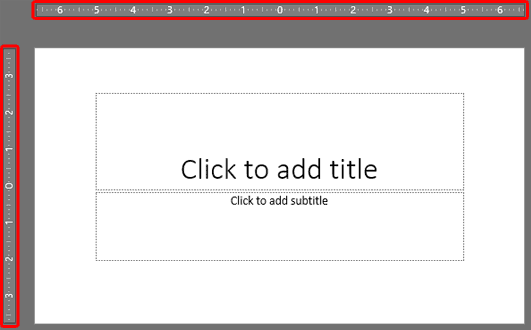
Learn about viewing and using Rulers in PowerPoint 2016 for Windows.
Filed Under:
PowerPoint 2016
Tagged as: Interface, Office 2016, Positioning, PowerPoint 2016, Rulers, Tutorials
Comments Off on Rulers in PowerPoint 2016 for Windows
We bring you an exclusive conversation with Kurt Dupont, who discusses his Dynamic WEATHER add-in for PowerPoint. We also look at AKVIS Neon, a new Photoshop plug-in that converts your pictures into glowing lines.
We explore interface options in the new PowerPoint 2016. This week we look at the Slide Area, Task Panes, Slides Pane, Normal View, and then Presenter View. Finally, don’t miss the new discussions and templates of this week!

Read Indezine’s PowerPoint and Presenting News.
Filed Under:
Ezine
Tagged as: Ezine, Indezine, News, PowerPoint
Comments Off on PowerPoint and Presenting News: November 24, 2015
Have you created all your slides, and now you want to show it in front of an audience? Or you just want to use this slide deck in a webinar, or even see them yourself to understand how they look in full-screen view? In that case, the view that plays your presentation in full-screen mode is Slide Show view.
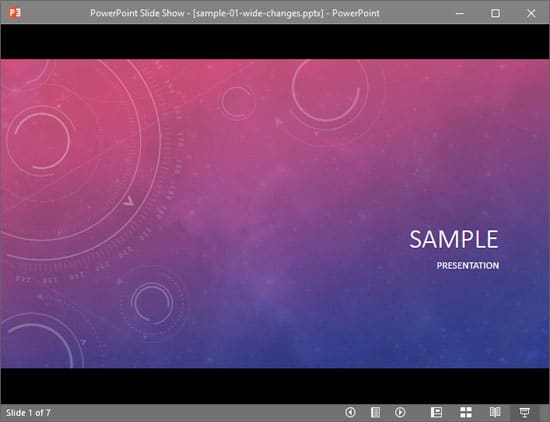
Learn about Slide Show view in PowerPoint 2016 for Windows.
You May Also Like:
Slide Master View in PowerPoint 2016 for Windows
Presenter View in PowerPoint 2016 for Windows
Normal View in PowerPoint 2016 for Windows
Outline View in PowerPoint 2016 for Windows
Filed Under:
PowerPoint 2016
Tagged as: Office 2016, PowerPoint 2016, Slide Show View, Tutorials, View
Comments Off on Slide Show View in PowerPoint 2016 for Windows
Each slide in your PowerPoint deck can have some notes associated with it, and these are placed in the Notes Pane area. Do you want to print all these slide notes? Yes, you can. However, very few people realize that you can print these notes in the form of a properly structured Notes Page. This might be among the least used PowerPoint options, but this certainly is among the most useful ones!
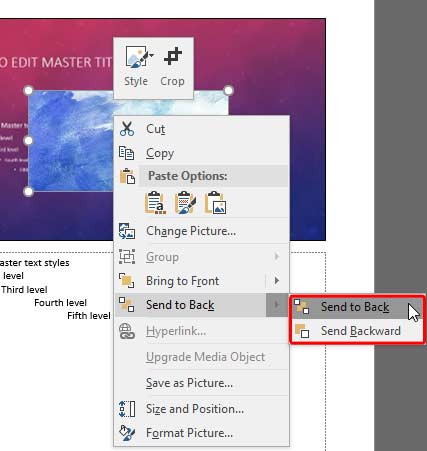
Learn about Notes Master view in PowerPoint 2016 for Windows.
You May Also Like:
Views in PowerPoint 2016 for Windows
Slide Master View in PowerPoint 2016 for Windows
Presenter View in PowerPoint 2016 for Windows
Normal View in PowerPoint 2016 for Windows
Filed Under:
PowerPoint 2016
Tagged as: Notes, Notes Master, Office 2016, PowerPoint 2016, Tutorials
Comments Off on Notes Master View in PowerPoint 2016 for Windows
Microsoft and the Office logo are trademarks or registered trademarks of Microsoft Corporation in the United States and/or other countries.