
This is the print version of this page. All content is copyright Indezine.com 2000-2026.
Thoughts and impressions of happenings in the world of PowerPoint and presentations, continuously updated since 2003.
See Also:
PowerPoint and Presenting Notes
PowerPoint and Presenting Glossary
PowerPoint works with the concept of selection, and then action. And the action typically is to edit whatever you may have selected! For such editing, the Format Task pane in PowerPoint 2016 can be indispensable. The Format Task pane aligns neatly with the right or left side of the PowerPoint interface, and you can now immediately see how your choices affect the selected slide objects. The Format Task pane is often tabbed. This means that you can jump quickly between different elements of your slide object! In many ways thus, the Format Task pane is the single source where different style formatting options are consolidated in one place.

Learn about the Format Task Panes in PowerPoint 2016 for Windows.
You May Also Like: Get a Free or Cheaper Copy of Microsoft PowerPoint | Office 365 or Office 2016? | Office 365 Subscriptions
Filed Under:
PowerPoint 2016
Tagged as: Office 2016, PowerPoint 2016, Task Pane, Tutorials
Comments Off on Format Task Pane in PowerPoint 2016 for Windows

Robert Kawalsky is the CEO and co-founder of Zeetings, a software company changing the way people present their ideas to the world. Robert is also an active investor and advisor to technology and internet-related businesses. He previously held the position of Portfolio Manager at Keybridge Capital where he grew and managed a portfolio of assets across shipping, aviation, renewable energy, and real estate. Robert began his career at Ernst & Young, holds a Bachelor of Commerce from the University of NSW and is a CFA Charterholder.
In this conversation, Robert talks about Zeetings.
Geetesh: Can you tell us more about what presenters and audiences can do with Zeetings, and what motivated you to create Zeetings?
Robert: We believe presentations are a powerful way of communicating the amazing ideas, lessons, products, and a million other weird and wonderful things people are passionate about. If you get this communication wrong the impact can be devastating; if you get it right, the impact can be world-changing.
We created Zeetings because we realized that despite the fact that technology has advanced dramatically, fundamentally presentations have not kept pace. What’s more, people’s expectations have changed – no longer is it acceptable to expect an audience to sit passively and be ignored. People want to lean in, have their say, and participate in a dialogue. Zeetings makes this possible.

Zeetings transforms a one-way presentation into a two-way conversation. When presenting your PowerPoint slides with Zeetings, everyone in your audience (whether in the room or not) can participate from any connected device by simply going to a single URL. There’s nothing to download or install; you can be on any network and Zeetings works on phones, tablets, and laptops.
Participants are able to view your slides in real-time as you present them – when you change slides, their screen will automatically stay in sync. As a presenter, you can add interactive elements between your slides such as polls, websites, and videos. Audiences are also able to post questions and comments, connect with each other, and take notes on a private notepad.
Along with all this interactivity, Zeetings also provides presenters with data-driven insights into their presentations and audience. Presenters can finally understand what aspects of their presentation resonated, which questions people most want to be answered, and who continued to be interested in the materials after the presentation concluded.
Geetesh: How is Zeetings different than other similar offerings – what sets it apart?
Robert: Firstly, Zeetings is extremely easy to use. That’s easy to say but hard to create and we have spent thousands of hours designing Zeetings to be intuitive and maintaining simplicity as a core design principle.
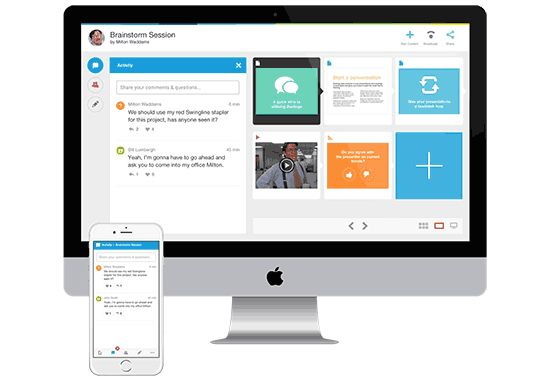
Secondly, Zeetings has been designed from the ground up with interactivity in mind. As an example, existing polling solutions are added into presentations as an afterthought creating a broken experience whereas, with Zeetings, all the interactive elements are seamlessly blended together to create a smooth and consistent experience for presenters and audiences.
Finally, Zeetings is completely unique in that we don’t believe the conversation should end once you’ve finished presenting your final slide. With Zeetings, everyone in your presentation can stay connected and keep conversing. In fact, many people are not using Zeetings to deliver live presentations at all but rather using Zeetings as an engaging way of sharing presentations for people to view in their own time. Unlike emailing a slide deck, sharing a presentation with Zeetings allows you to track how people consuming your presentation and get them engaged using all the interactive elements.
The views and opinions expressed in this blog are those of the authors and do not necessarily reflect the official policy or position of any other agency, organization, employer, or company.
Filed Under:
Interviews
Tagged as: Add-in, Conferencing, Delivery, Interviews, PowerPoint, Presenting, Robert Kawalsky, Zeetings
Comments Off on Zeetings: Conversation with Robert Kawalsky

Keith Bortoluzzi partnered with Olivier de Saint Louvent to create Power-user, an add-in for PowerPoint. They are both strategy consultants, who work on a daily basis using PowerPoint. They understand how important it is to make an impact on clients and managers, but also how time-consuming it can be. This is why they developed features to help users create visually attractive presentations while saving time on formatting tasks.
In this conversation, Keith discusses Power-user, an add-in for PowerPoint.
Geetesh: What motivated you to create Power-user for PowerPoint, and what are the features where Power-user shines?
Keith: Our idea started from the observation that millions of people work on PowerPoint every day and that it often takes an hour to create a professional slide. Most of the time, those users are skilled workers, whose time is both valuable for themselves and expensive for their companies. We wanted to design our software so that these professionals can save time to focus on what matters in PowerPoint: delivering messages efficiently. For our clients, Power-user is an opportunity to expand their business as much as to reduce their costs.

Geetesh: Can you share some of your favorite Power-user features?
Keith: We have created our features around 2 of the most important rules for PowerPoint:

The views and opinions expressed in this blog post or content are those of the authors or the interviewees and do not necessarily reflect the official policy or position of any other agency, organization, employer, or company.
Filed Under:
Interviews
Tagged as: Add-in, Diagrams, Interviews, Keith Bortoluzzi, Maps, PowerPoint
PowerPoint’s Gridlines help you position your slide objects more precisely. Along with Rulers and Guides, Gridlines let you position and snap slide objects in place so that you can easily line a set of slide objects uniformly. We will learn more about how you can work effectively with gridlines in this tutorial.
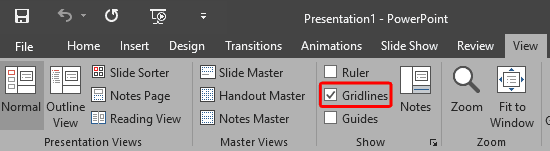
Learn about viewing and hiding gridlines in PowerPoint 2016 for Windows.
Filed Under:
PowerPoint 2016
Tagged as: Gridlines, Interface, Office 2016, PowerPoint 2016, Tutorials, View
Comments Off on Gridlines in PowerPoint 2016 for Windows
These “sticky tape” graphics have a textured look and are already placed in PowerPoint slides – just copy them and paste within your slides to create a look that makes a picture, shape, or anything else appear as if it has been stuck on a surface, board, or wall with the tape! These ready-made sticky tape segments are already within PowerPoint slides — and have been provided in 10 different colors – and all colors have various transparency variations.

Get these Sticky Tape graphics now.
Filed Under:
Presentation Bank
Tagged as: Design, Graphics, PowerPoint, Presentation Samples, Sticky Tape
Comments Off on Handmade Slides: Sticky Tape for PowerPoint – 03
Microsoft and the Office logo are trademarks or registered trademarks of Microsoft Corporation in the United States and/or other countries.