
This is the print version of this page. All content is copyright Indezine.com 2000-2026.
Thoughts and impressions of happenings in the world of PowerPoint and presentations, continuously updated since 2003.
See Also:
PowerPoint and Presenting Notes
PowerPoint and Presenting Glossary
These “sticky tape” graphics are already placed in PowerPoint slides – just copy them and paste within your slides to create a look that makes a picture, shape, or anything else appear as if it has been stuck on a surface, board, or wall with tape! These ready-made sticky tape segments are already within PowerPoint slides – and have been provided in 10 colors – all colors have various transparency variations.

Download and use these Sticky Tape graphics in your slides.
Filed Under:
Presentation Bank
Tagged as: Design, Graphics, PowerPoint, Presentation Samples, Sticky Tape
Comments Off on Handmade Slides: Sticky Tape for PowerPoint – 01
By Dave Paradi
Graphs that use a measurement axis, like column, bar, and line graphs, by default have an axis when created in Excel or PowerPoint. One question that presenters ask is whether data labels should be added to the graph. In this article, I want to explain when you may want to consider using data labels vs. using an axis. One thing you don’t want to do is to use both an axis and data labels on a graph, like this example.

Filed Under:
Guest Posts
Tagged as: Charting, Dave Paradi, Guest Post, PowerPoint, Survey
Comments Off on Choosing between Axis or Data Labels in Charts
Here’s the most comprehensive list of PowerPoint 2016 keyboard shortcuts that we know. How many of these do you presently use? Speed up your PowerPoint usage with these shortcuts, and enjoy some free time!
Explore keyboard shortcuts in PowerPoint 2016 for Windows.
Filed Under:
PowerPoint 2016
Tagged as: Keyboard Shortcuts, Office 2016, PowerPoint 2016, Tutorials
Comments Off on Keyboard Shortcuts: PowerPoint 2016 for Windows
PowerPoint 2016’s tri-paned interface has three regions: the Slides Pane, the Slide Area, and the Notes Pane. The Notes Pane is placed right below the Slide Area. The Notes Pane provides space to add speaker’s notes that can be so helpful to the presenter while presenting – you can also write any sort of information about the presentation or individual slide.
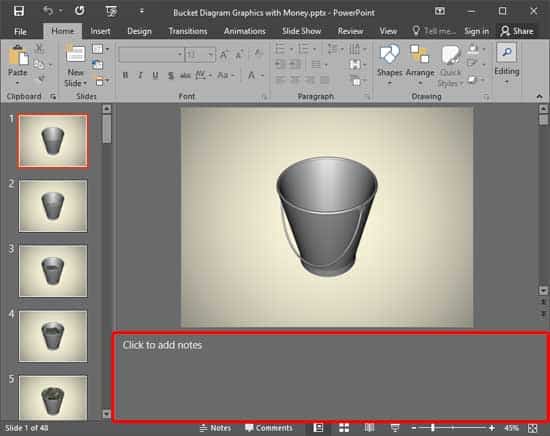
Learn about the Notes Pane within PowerPoint 2016 for Windows.
Filed Under:
PowerPoint 2016
Tagged as: Interface, Notes, Notes Pane, Office 2016, PowerPoint 2016, Tutorials
Comments Off on Notes Pane in PowerPoint 2016 for Windows
 Ellen Finkelstein is a Microsoft PowerPoint MVP and author of several PowerPoint, Flash, and AutoCAD books. She also holds webinars on presenting skills on a regular basis.
In this interview, Ellen talks about her PowerPoint 2013 Essentials video course.
Geetesh: Ellen, can you tell us about the PowerPoint 2013 video tutorial series you created for Wiley?
Ellen: A couple of years ago, Wiley commissioned me to create a video course on PowerPoint. I came up with the idea that it should be a tutorial, so that each lesson contains some general principles, but by the end of the course, the user has created a complete presentation. In this way, people learn by doing, not just listening. There are 10 lessons (now called Episodes).

Geetesh: What type of PowerPoint user is this series geared towards?
Ellen: PowerPoint 2013 Essentials is geared towards someone who is a beginning or intermediate user and who wants to learn how to create a presentations that avoids Death by PowerPoint. The course covers all of the basic features of PowerPoint, including SmartArt, images, charts, shapes, tables, animation, and multimedia. I also cover editing techniques. The last episode is about how to deliver a presentation clearly and professionally. The idea is to learn the features of PowerPoint and then apply them to actually creating and delivering a presentation that meets the presenter’s goals.
The views and opinions expressed in this blog post or content are those of the authors or the interviewees and do not necessarily reflect the official policy or position of any other agency, organization, employer, or company.
Filed Under:
Interviews
Tagged as: Ellen Finkelstein, Interviews, Training
Comments Off on PowerPoint 2013 Essentials Video Course: Conversation with Ellen Finkelstein
Microsoft and the Office logo are trademarks or registered trademarks of Microsoft Corporation in the United States and/or other countries.