
This is the print version of this page. All content is copyright Indezine.com 2000-2026.
Thoughts and impressions of happenings in the world of PowerPoint and presentations, continuously updated since 2003.
See Also:
PowerPoint and Presenting Notes
PowerPoint and Presenting Glossary

Keith Bortoluzzi partnered with Olivier de Saint Louvent to create Power-user, an add-in for PowerPoint. They are both strategy consultants, who work on a daily basis using PowerPoint. They understand how important it is to make an impact on clients and managers, but also how time-consuming it can be. This is why they developed features to help users create visually attractive presentations while saving time on formatting tasks.
In this conversation, Keith discusses Power-user, an add-in for PowerPoint.
Geetesh: What motivated you to create Power-user for PowerPoint, and what are the features where Power-user shines?
Keith: Our idea started from the observation that millions of people work on PowerPoint every day and that it often takes an hour to create a professional slide. Most of the time, those users are skilled workers, whose time is both valuable for themselves and expensive for their companies. We wanted to design our software so that these professionals can save time to focus on what matters in PowerPoint: delivering messages efficiently. For our clients, Power-user is an opportunity to expand their business as much as to reduce their costs.

Geetesh: Can you share some of your favorite Power-user features?
Keith: We have created our features around 2 of the most important rules for PowerPoint:

The views and opinions expressed in this blog post or content are those of the authors or the interviewees and do not necessarily reflect the official policy or position of any other agency, organization, employer, or company.
Filed Under:
Interviews
Tagged as: Add-in, Diagrams, Interviews, Keith Bortoluzzi, Maps, PowerPoint
PowerPoint’s Gridlines help you position your slide objects more precisely. Along with Rulers and Guides, Gridlines let you position and snap slide objects in place so that you can easily line a set of slide objects uniformly. We will learn more about how you can work effectively with gridlines in this tutorial.
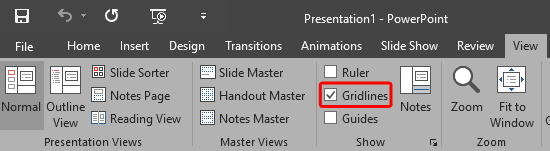
Learn about viewing and hiding gridlines in PowerPoint 2016 for Windows.
Filed Under:
PowerPoint 2016
Tagged as: Gridlines, Interface, Office 2016, PowerPoint 2016, Tutorials, View
Comments Off on Gridlines in PowerPoint 2016 for Windows
These “sticky tape” graphics have a textured look and are already placed in PowerPoint slides – just copy them and paste within your slides to create a look that makes a picture, shape, or anything else appear as if it has been stuck on a surface, board, or wall with the tape! These ready-made sticky tape segments are already within PowerPoint slides — and have been provided in 10 different colors – and all colors have various transparency variations.

Get these Sticky Tape graphics now.
Filed Under:
Presentation Bank
Tagged as: Design, Graphics, PowerPoint, Presentation Samples, Sticky Tape
Comments Off on Handmade Slides: Sticky Tape for PowerPoint – 03
Like Gridlines, Guides also allow you to position and snap your slide objects in place. For most professional slide designers, creating slides without guides would be very worrisome! When guides are enabled for the first time within PowerPoint, you can just see two guides by default. These guides are two dotted lines, one horizontal and the other vertical. They span to intersect exactly at the center of the slide.

Learn about viewing and hiding Guides in PowerPoint 2016 for Windows.
Filed Under:
PowerPoint 2016
Tagged as: Guides, Interface, Office 2016, PowerPoint 2016, Tutorials, View
Comments Off on Guides in PowerPoint 2016 for Windows
When working with multiple slide objects, you should have a visual cue about where you are placing them. You can get exact coordinates of your slide objects using the positioning options in PowerPoint, but most of the time, you just need an approximate idea of where your objects are placed, and this can be easily obtained by using the Rulers option available in PowerPoint. By default, the Rulers may not be visible, but when made visible, they are located on the top and left parts of the active slide.
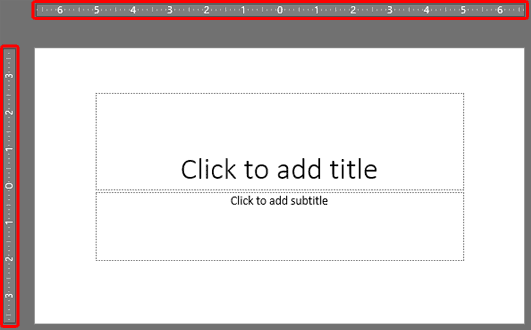
Learn about viewing and using Rulers in PowerPoint 2016 for Windows.
Filed Under:
PowerPoint 2016
Tagged as: Interface, Office 2016, Positioning, PowerPoint 2016, Rulers, Tutorials
Comments Off on Rulers in PowerPoint 2016 for Windows
Microsoft and the Office logo are trademarks or registered trademarks of Microsoft Corporation in the United States and/or other countries.