
This is the print version of this page. All content is copyright Indezine.com 2000-2026.
Thoughts and impressions of happenings in the world of PowerPoint and presentations, continuously updated since 2003.
See Also:
PowerPoint and Presenting Notes
PowerPoint and Presenting Glossary
 Bob Befus is passionate about helping scientists and clinicians present the results of their research. In the 1980s, he co-founded Spectrum Multi Media Inc. as a full-service presentation graphics company servicing medical and pharmaceutical organizations. In later years, the company name was changed to Research Presentation Strategies to reflect its focus on helping customers with high profile regulatory and scientific presentations. He has worked in just about every area of presentation graphics—digital presentations, video production and interactive multimedia.
In this conversation, Bob discusses SlideSource, a presentation management tool that lets you organize, develop and share your presentations from one secure online library anytime, anywhere.
Geetesh: Can you briefly tell us more about SlideSource, and what motivated you to create this product?
Bob: We have helped customers develop and deliver sales, marketing, clinical, and regulatory presentations for close to 30 years. Over that time, we became well acquainted with the challenges that individuals, teams, and companies experience while trying to manage all of their presentation content.
While presentation technology has changed dramatically over the last three decades, the systems and tools for managing all of that presentation content have not kept up. In fact, these problems have gotten worse as the creation of slides and presentations has gone from primarily being the domain of specialized design teams and individuals to being a ubiquitous activity performed across all functional areas and levels.
In order to effectively deploy slides and presentations, it’s crucial to know: where the most current version of a slide is (and where all the previous versions of it are), who last edited a slide, what presentations the slide is a part of and where all of those presentations currently reside. It’s also very important to know how to easily make the right slides and presentations available to the right people at the right time. Finally, when you update a slide, you want to be sure that the updated version has been propagated to all presentations that contain that slide.
Through our work over the years helping companies develop very large slide libraries that include 2,000 to 10,000 unique slides, we began developing custom tools to help them organize and manage those slides and presentations. One of those tools eventually became SlideSource which is now available as a cloud service (SlideSource.com) and as the only slide library add-on available for Microsoft’s SharePoint platform (SlideSource SP).
When a presentation is uploaded to SlideSource, the slides in the deck are split into individual PowerPoint files (one slide per file) and these individual files are stored in a slide collection. A slide library can hold many unique slide collections. The individual slides can now be organized by simply dragging and dropping them into any desired folder structure. Individual slides can also be dynamically linked to presentations. This means that when looking at a slide’s properties, users can instantly see all the presentations that include that slide. It also means that if any slide is edited, it is automatically updated in any presentation that includes it.
You can edit slides in PowerPoint directly from your library, track version history and assign search tags to slides. Even when you download slides or a presentation from SlideSource, it maintains its connection to the library. When you re-upload a presentation you edited offline, SlideSource will recognize those slides and update the version history of each slide with the new version.

Geetesh: Who are typical SlideSource users? And can you share a small story about any of these users?
Bob: SlideSource customers range from an individual teacher or professor organizing their teaching slides to a whole medical affairs department of a major pharmaceutical company managing many thousands of clinical slides. I recently met with a customer and the first words out of his mouth when I sat down were, “Bob, we have a slide problem!”
This team was preparing for the global launch of a new product in 2016. While large companies have sophisticated content management systems to manage most of their communication media, presentations seem to fall through the cracks. The team was having trouble making sure that presenters only had access to the most current, approved content. Since presenters were both inside and outside the company, PowerPoint files were often sent via email to users, who often made edits to target the presentation to a specific audience. These presentations were essentially lost from that point on.
Adding a SlideSource library provided a single secure location for all the approved presentation content for the new product launch. The library could be easily managed by a small team and yet all stakeholders, whether inside or outside the company could access it. Permissions were configured based on the user’s need to access or edit presentations.
SlideSource brought order, structure and security to the team’s large and growing library of slides and presentations.
The views and opinions expressed in this blog post or content are those of the authors or the interviewees and do not necessarily reflect the official policy or position of any other agency, organization, employer, or company.
Filed Under:
Interviews
Tagged as: Digital Asset Management, Interviews, PowerPoint, SharePoint, SlideSource
Comments Off on SlideSource: Conversation with Robert Befus
In PowerPoint 2013, all information that you need about your currently active presentation is available in a single easily accessible location. This location is the Info pane of Backstage View. Using the options available within this pane, you can access information about permissions set for the active presentation, prepare your content for sharing, and also possibly recover older versions of unsaved files. In addition, the Info pane also provides access to many more properties that we will discuss on this page.

Filed Under:
PowerPoint 2013
Tagged as: Backstage, Interface, Office 2013, PowerPoint 2013, Tutorials
Comments Off on Backstage View – Info Pane in PowerPoint 2013 for Windows
After delivering an amazing keynote session during the Presentation Summit 2011 in Austin, Nigel Holmes returned to this conference to present the first keynote of the conference in New Orleans in September 2015.
Nigel began by asking everyone to place a card that had a printed smiling lip over their lips. He then clicked a picture of the audience with the superimposed lips!

He then shared a humorous video about cheese and how cheese brings up romantic feelings!
Yes, that was humorous. Speaking of humor, Nigel talked about humor, good humor, good feelings, and feelings, and then emotions.
Nigel then shared a quote:
Your intellect may be confused, but your emotions never lie to you.
– Robert Ebert
Nigel shared some thoughts:
The best way to connect with people is to make them smile — not really laugh but just smile.
Humor has a close connection to human emotion.
Nigel then explained how you can save yourself from being eaten by an alligator. He certainly used a visual to explain this concept.

Now, making fun about how you can save yourself from an alligator while you are within the alligator? That may not appear to be too funny to some people! As Nigel added:
But — and it’s a big, heavy “but”, this is not trivializing information as some purists may fear.
He also added:
Here’s the dilemma. Just because it is serious, does it make it authoritative? Just because it is lighthearted, does it make it not authoritative?
Sometimes, these situations may lead to unexpected results. A particular scientist was upset when his research was being presented as a cartoonish visual. He was offended that humor was being used with his work. He complained, “You are making fun, you are making fun of my life’s work!” But then, after the visual was published, he had a different opinion. He said, “Now my colleagues can see and understand better what I have been doing all these years!” And yes, the scientist said, “thank you!”
Nigel clarified his thought process further:
Humor is not convincing others to be funny, but to be approachable.
He then quoted Confucius:
Tell me and I will forget;
Show me and I may remember;
Involve me and I will understand.
– Confucius, 450 BC
Nigel then asked everyone to do the paralysis test.

He showed a hand poster from the New York Times.

He asked the audience to notice that the size of the hand on that page was essentially many times larger than an actual human hand. Why was it larger? To explain this reasoning better, Nigel asked 6 attendees to come forward and participate in a small exercise.

He showed them three pictures:
First, they were shown a picture of the facade of the hotel in New Orleans.

He then also showed a picture of the Lascaux caves in France, from around 16,000 years ago.

Finally, he showed a picture of the Chauvet caves in France, from around 32,000 years ago.

Nigel then remarked that paintings were not too different 16,000 and 32,000 years ago. So that must have been one long art movement!
Why did Nigel talk about something that was millions of years old? That was because he wanted to explore differences between a million, a billion, and a trillion — especially between a million, a billion, and a trillion seconds.
Nigel used exercises for the participants to make these differences obvious.

He also explained differences between a byte and zettabyte.

So, why this talk about millions, billions, and trillions, or even a discussion about bytes and zettabytes? That’s because everything relates to context. This context explains and makes one understand better. Context also lets you visualize.
Getting back to context, and this talk about millions and billions, Nigel opened up bundles of dollar notes. He actually had a million dollars! Were they real? Let’s leave that to your imagination and get to the context part now! So, a million dollars, when stacked above each other in wads would go up a little higher than 3 feet. A billion dollars would be twice the height of the Empire State Building. And a trillion dollars may take us somewhere in space?

Nigel then showed a visual of the moon. He compared the size of the moon to the size of USA or Australia. Nigel also showed a context-based graphic that wondered how large other planets in the solar system would be if the earth was the size of a cherry tomato?

Nigel shared some more thoughts:
Context helps bring out the sizes of things and their relations.
You understand something better when it is compared to something you know.
Leave space; the eye can fill in space.

Space creates a method to show something that’s important and directs the eye.
The key to a great information graphic is editing. Editing is not the same as simplifying. In fact, the word clarify is better than simplify.
Simplification means eliminating the unnecessary so that the necessary may speak.
– Hans Hofmann
We cram in too much stuff into the spaces we are given.
It’s just not graphics, toothbrushes are complicated too!

Pie charts may be a no-no now, but here’s a pie chart of a pyramid.

Looking at seemingly different images relaxes the mind. When we see different things, we relax. May be that’s why guitarists make those strange faces?

Nigel then spoke about a rainbow pencil that was made with paper of different colors. Sharpen the pencil and you will end up with lovely shavings as a result.

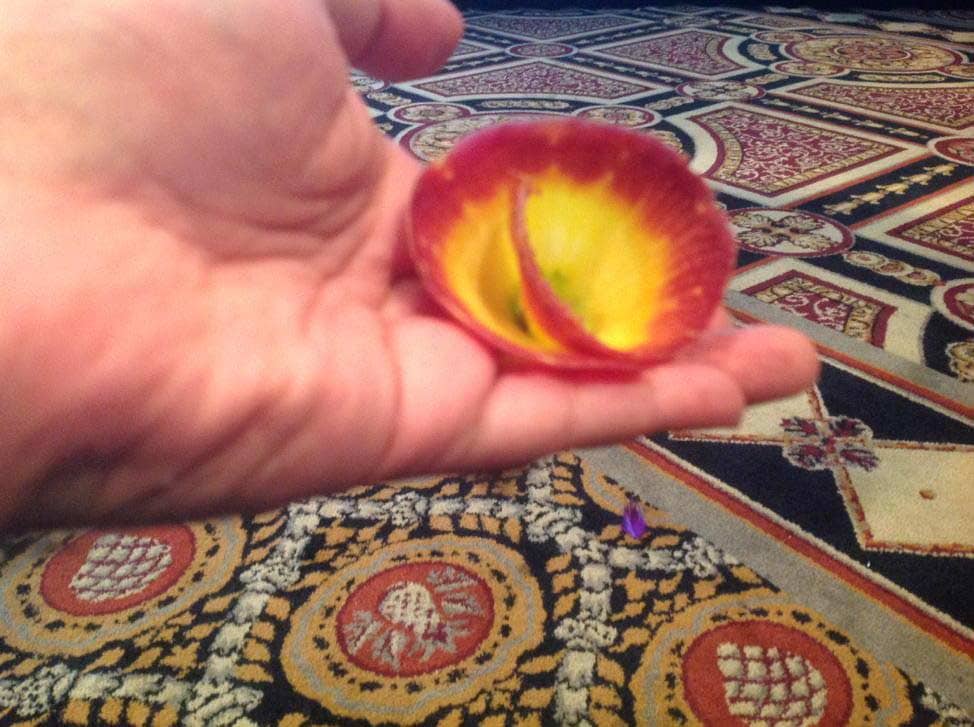
Nigel then showed a gift from his grandson, a carrot sharpener. He then actually used the sharpener to create shavings from the carrot. He gifted me one!

Born in England, Nigel Holmes moved to America in 1978 to work for Time Magazine. He became graphics director and stayed there for 16 years. Despite academic criticism, he remains committed to the power of pictures and humor to help people understand otherwise abstract numbers and difficult scientific concepts, whether in print or in presentations.
The views and opinions expressed in this blog post or content are those of the authors or the interviewees and do not necessarily reflect the official policy or position of any other agency, organization, employer, or company.
Filed Under:
Events
Tagged as: Nigel Holmes, PowerPoint, Presentation Summit, Synopsis
Comments Off on Nigel Holmes at the Presentation Summit 2015
The Ribbon is the long strip comprising tabs with buttons across the top of the main window within the PowerPoint interface. Since PowerPoint 2007, the Ribbon has replaced all the menus and toolbars that were found in PowerPoint 2003 and older versions. The Ribbon contains almost all the commands you need to work with your slides, and is designed in a way that helps you quickly find the commands that you need to complete a task. You no longer have to search commands endlessly through many menus and sub-menus.

Learn about the Ribbon and Tabs in the PowerPoint 2016 interface.
Filed Under:
PowerPoint 2016
Tagged as: Interface, Office 2016, PowerPoint 2016, Tutorials
Comments Off on Ribbon and Tabs in PowerPoint 2016 for Windows
We first present an interview with Taylor Croonquist, who discusses his then-upcoming webinar as part of the Outstanding Presentations series. We also bring you interviews with celebrated speakers who will be part of the Presentation Summit in New Orleans later this month. This week we feature Echo Swinford, Alan Hoffler, and Alexander Hanauer.
We begin a tutorial series for the new PowerPoint 2016 for Windows — we explore the Interface and the Presentation Gallery. We then continue with three tutorials that will help you work better within Microsoft Sway. Finally, don’t miss the new discussions and templates of this week!

Read Indezine’s PowerPoint and Presenting News.
Filed Under:
Ezine
Tagged as: Ezine, Indezine, News, PowerPoint
Comments Off on PowerPoint and Presenting News: September 29, 2015
Microsoft and the Office logo are trademarks or registered trademarks of Microsoft Corporation in the United States and/or other countries.