
This is the print version of this page. All content is copyright Indezine.com 2000-2026.
Thoughts and impressions of happenings in the world of PowerPoint and presentations, continuously updated since 2003.
See Also:
PowerPoint and Presenting Notes
PowerPoint and Presenting Glossary
Here’s the most comprehensive list of PowerPoint 2016 keyboard shortcuts that we know. How many of these do you presently use? Speed up your PowerPoint usage with these shortcuts, and enjoy some free time!
Explore keyboard shortcuts in PowerPoint 2016 for Windows.
Filed Under:
PowerPoint 2016
Tagged as: Keyboard Shortcuts, Office 2016, PowerPoint 2016, Tutorials
Comments Off on Keyboard Shortcuts: PowerPoint 2016 for Windows
PowerPoint 2016’s tri-paned interface has three regions: the Slides Pane, the Slide Area, and the Notes Pane. The Notes Pane is placed right below the Slide Area. The Notes Pane provides space to add speaker’s notes that can be so helpful to the presenter while presenting – you can also write any sort of information about the presentation or individual slide.
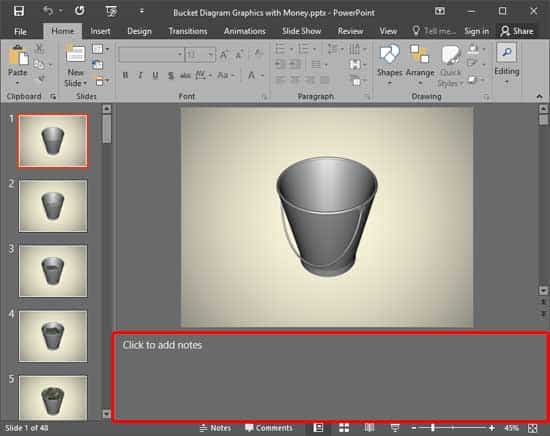
Learn about the Notes Pane within PowerPoint 2016 for Windows.
Filed Under:
PowerPoint 2016
Tagged as: Interface, Notes, Notes Pane, Office 2016, PowerPoint 2016, Tutorials
Comments Off on Notes Pane in PowerPoint 2016 for Windows
 Ellen Finkelstein is a Microsoft PowerPoint MVP and author of several PowerPoint, Flash, and AutoCAD books. She also holds webinars on presenting skills on a regular basis.
In this interview, Ellen talks about her PowerPoint 2013 Essentials video course.
Geetesh: Ellen, can you tell us about the PowerPoint 2013 video tutorial series you created for Wiley?
Ellen: A couple of years ago, Wiley commissioned me to create a video course on PowerPoint. I came up with the idea that it should be a tutorial, so that each lesson contains some general principles, but by the end of the course, the user has created a complete presentation. In this way, people learn by doing, not just listening. There are 10 lessons (now called Episodes).

Geetesh: What type of PowerPoint user is this series geared towards?
Ellen: PowerPoint 2013 Essentials is geared towards someone who is a beginning or intermediate user and who wants to learn how to create a presentations that avoids Death by PowerPoint. The course covers all of the basic features of PowerPoint, including SmartArt, images, charts, shapes, tables, animation, and multimedia. I also cover editing techniques. The last episode is about how to deliver a presentation clearly and professionally. The idea is to learn the features of PowerPoint and then apply them to actually creating and delivering a presentation that meets the presenter’s goals.
The views and opinions expressed in this blog post or content are those of the authors or the interviewees and do not necessarily reflect the official policy or position of any other agency, organization, employer, or company.
Filed Under:
Interviews
Tagged as: Ellen Finkelstein, Interviews, Training
Comments Off on PowerPoint 2013 Essentials Video Course: Conversation with Ellen Finkelstein
We start with our review of Dynamic NEWS, a PowerPoint add-in that lets you source RSS feeds of stuff such as news, and show it on your slides, with content dynamically changing at intervals. We then bring you a synopsis of Carmen Simon’s amazing keynote at the Presentation Summit in New Orleans. If you attended the session, you want to read what she said. And if you did not attend, you still want to read it to discover what you missed! There’s more — Dave Paradi discusses the findings of his amazing PowerPoint Survey!
We continue our tutorial series about the interface options in PowerPoint 2016 for Windows. Finally, don’t miss the new discussions and templates of this week!

Read Indezine’s PowerPoint and Presenting News.
Filed Under:
Ezine
Tagged as: Ezine, Indezine, News, PowerPoint
Comments Off on PowerPoint and Presenting News: October 27, 2015
The Status Bar is a thin strip located at the bottom of the PowerPoint 2016 interface. This area provides information about the active slide and also provides several View options. To work with options in the Status Bar, you must have a presentation open in PowerPoint 2016; otherwise the options within the Status Bar will be grayed out.

Learn about options available in the Status Bar within PowerPoint 2016 for Windows.
Filed Under:
PowerPoint 2016
Tagged as: Interface, Office 2016, PowerPoint 2016, Status Bar, Tutorials, View
Comments Off on Status Bar in PowerPoint 2016 for Windows
Microsoft and the Office logo are trademarks or registered trademarks of Microsoft Corporation in the United States and/or other countries.