
This is the print version of this page. All content is copyright Indezine.com 2000-2026.
Thoughts and impressions of happenings in the world of PowerPoint and presentations, continuously updated since 2003.
See Also:
PowerPoint and Presenting Notes
PowerPoint and Presenting Glossary
All slides within PowerPoint are based on one of the available Slide Layouts (we call these just layouts for the rest of this tutorial). These layouts can be chosen when you add a new slide or you can even change the layout of your existing slides — both these options are accessible from the Home tab of the Ribbon. While these available layouts seem to cover most types of slides, you may sometimes want to create a new layout based on your individual requirements.

Learn how to duplicate, rename, and edit slide layouts in PowerPoint 2013 Windows.
Filed Under:
PowerPoint 2013
Tagged as: Masters, PowerPoint 2013, Templates, Tutorials
Comments Off on Learn PowerPoint 2013 for Windows: Duplicate, Rename, and Edit Slide Layouts
We first explore whether you should even create widescreen slides? Then we bring you an interview with Matteo Cassese who discusses his popular SlideShare presentation, The Magic Play Book. Then Leon Conrad discusses the new Odyssey – Dynamic Learning System, which is also the name of a book he co-authored.
PowerPoint 2013 users can learn about Slide Layouts and switching views between multiple presentations. The latter tutorial can also be found for users of PowerPoint 2011 for Mac. Finally, don’t miss the new discussions and templates of this week!

Read Indezine’s PowerPoint and Presenting News.
Filed Under:
Ezine
Tagged as: Ezine, Indezine, News, PowerPoint
Comments Off on PowerPoint and Presenting News: June 2, 2015
PowerPoint 2013 allows you to insert video (and also online videos) files within your presentation — one of the file formats that you can use for these video options is Flash SWF. You can also use the Developer tab of the Ribbon to insert Flash SWF movies. First of all, make the Developer tab visible as it is not visible by default. You also need to have the updated version of Adobe’s Shockwave Flash ActiveX control — to make sure, you have the current version installed, go to this site using Microsoft Internet Explorer.
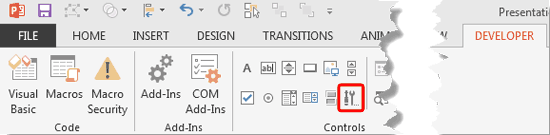
Learn how to insert Flash movie into PowerPoint 2013 for Windows, using Developer tab.
Filed Under:
PowerPoint 2013
Tagged as: PowerPoint 2013, PowerPoint Flash, Tutorials
Comments Off on Learn PowerPoint 2013 for Windows: Insert Flash Movies Using the Developer Tab
When you are working with one or two presentations in PowerPoint, you can easily access slides within any of them, compare the presentations and edit the content. And it is also easy to copy or move slides from one presentation to another. However, the situation may not be the same always. Let’s imagine you have four presentations open — and presently you can only see the one that is active. What about the other three presentations? How do you navigate to those presentations without having to close or minimize the active presentation? In this tutorial, you will learn how to switch between multiple open presentations in PowerPoint 2011, which is different from how you do so in PowerPoint for Windows.
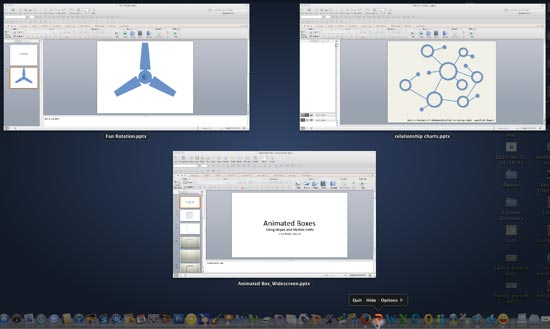
Learn how to switch views between multiple open presentations in PowerPoint 2011 for Mac.
Filed Under:
PowerPoint 2011
Tagged as: Office for Mac, PowerPoint 2011, Tutorials
Comments Off on Learn PowerPoint 2011 for Mac: Switch Views Between Multiple Presentations
On a webinar that I was watching on a phone, the presenter shared a slide with numbers. There were many numbers, and they were small. The same goof-up had happened at a destination conference a few months ago! The text size on the slide was teeny-weeny, and you could not see much, even if you squinted your eyes. This time, the problem was not that the presenter had used 8 point text on the slide; this text was 20 points, and that did not make it too small. Even then, in a large room, you still could not read the text!

Filed Under:
PowerPoint All Versions
Tagged as: Aspect Ratio, Delivery, Opinion, PowerPoint, Presentation Skills, Standard, Widescreen
Comments Off on Should You Create Widescreen Slides?
Microsoft and the Office logo are trademarks or registered trademarks of Microsoft Corporation in the United States and/or other countries.