
This is the print version of this page. All content is copyright Indezine.com 2000-2026.
Thoughts and impressions of happenings in the world of PowerPoint and presentations, continuously updated since 2003.
See Also:
PowerPoint and Presenting Notes
PowerPoint and Presenting Glossary
If you want to work with more than one presentations in PowerPoint — you can easily open two or more presentation next to each other which makes it easy to compare presentations and edit them as well. This is also helpful when you want to copy or move slides from one presentation to another. Let’s imagine you have four presentations open and you can only see the one that is active. What about the other three presentations? How do you navigate to those presentations without having to close, or minimize the active presentation? In this tutorial, you will learn how to switch between multiple open presentations in PowerPoint 2013. With this option you can easily switch in between different presentation windows.

Learn how to switch views between multiple presentations in PowerPoint 2013 for Windows.
Filed Under:
PowerPoint 2013
Tagged as: PowerPoint 2013, Tutorials
Comments Off on Learn PowerPoint 2013 for Windows: Switch Views Between Multiple Presentations
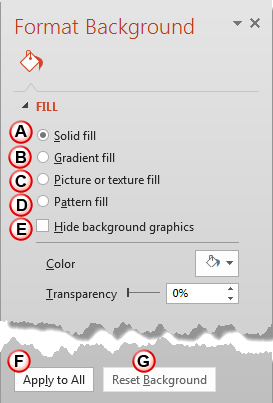
Content and appearance are the two major components of presentation slides. Among them, the former is always more significant than the latter — but that does not mean that you should neglect the latter. A simple looking presentation with a clean background is always a great idea since that doesn’t overpower your message. Yet, there are plenty of opportunities to go beyond a plain background and use a less restrained background instead — your choice for a slide background should complement the content of your presentation. For example, you’ll want a flashier background for slides created for kindergarten students — or if you were creating a PowerPoint greeting card. On the other hand, you may want a washed out, faded, or even a subtle patterned picture for a typical business presentation.
Filed Under:
PowerPoint 2013
Tagged as: Masters, PowerPoint 2013, Templates, Tutorials
Comments Off on Learn PowerPoint 2013 for Windows: Custom Backgrounds for Slide Master and Layouts
 Matteo Cassese is an interactive consultant and an entrepreneur passionate about innovation and technology living in Berlin, Germany. Before starting his consulting business, La Fabbrica della Realtà, in 2011, he has held technical and marketing roles in the internet, telecommunications and entertainment fields. His experience with presentations spans more than 10 years, were he has applied his skills to bigger corporations and startups alike.
In this conversation, Matteo discusses The Magic Play Book, a SlideShare presentation that contains the 8 basic components that are needed for any great speech.
Geetesh: Tell us about your new Playbook for successful presentations – what motivated you to create it?
Matteo: I don’t believe in keeping secrets. If I have something valuable I feel compelled to share it.
This is what I am doing with the Playbook for successful presentations. It’s a blueprint that you can apply to any type of presentation.
I’m providing a step by step guide to structure your presentation. Once you’ve got a solid structure you can achieve any goal. Without a dependable structure your presentation unfortunately will go nowhere.
The best part is: the deck is very visual and it’s really easy to comprehend the storytelling principles that guide it.
Geetesh: What is the one thing that people can do to deliver a better presentation?
Matteo: A good presentation is like a good joke. It has a beginning, a middle and an end.
In a good joke there is a first moment that is the “setup”. A situation is presented, usually a location and some characters.
A good presentation should have a clear beginning where the subject and characters are clearly outlined. Let’s take the beginning of a joke as an example: “Two hunters are out in the woods”.

The second part of a good presentation is the conflict or action. This is the moment where you provide some dynamic information.
Let’s see how our joke continues: “One of the two hunter collapses. He doesn’t seem to be breathing and his eyes are glazed. The other guy whips out his phone and calls the emergency services.”
Presentations need to have strong, memorable endings. They should always end on high. Like a good joke, after you deliver your punchline there is nothing more to say.
Let’s see how our joke ends on a high: “The hunter is on the phone with the emergency services. He gasps, “My friend is dead! What can I do?”. The operator says “Calm down. I can help. First, let’s make sure he’s dead.” There is a silence, then a shot is heard. Back on the phone, the guy says “OK, now what?”.
This advice and example may sound simplistic, but this is what great storytellers do. They simply create presentations with a great beginning, a strong middle part and an unforgettable ending.
See Also: Presentation Hero Academy: Conversation with Matteo Cassese
The views and opinions expressed in this blog are those of the authors and do not necessarily reflect the official policy or position of any other agency, organization, employer, or company.
Filed Under:
Interviews
Tagged as: Interviews, PowerPoint, SlideShare, Training
Comments Off on The Magic Play Book: Conversation with Matteo Cassese
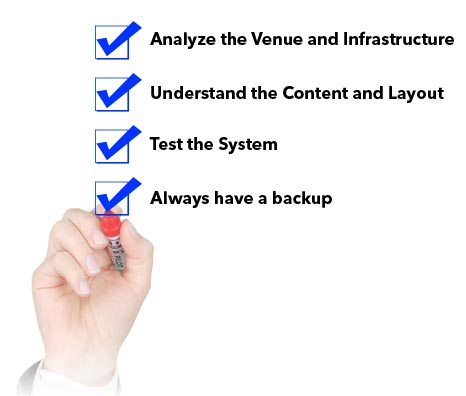
We begin with an exclusive conversation with Scott Kabat of Prezi who talks about 50 million Prezi users. We then explore a list of activities you should do before delivering your slides; let’s call this a presentation delivery checklist. Thereafter, we learn how you can add new SmartArt graphic variants into your PowerPoint slides. Rodney Saulsberry talks to us about his new book, Tongue Twisters and Vocal Warm-Ups in an exclusive interview.
PowerPoint 2013 users can learn headers, footers and slide numbers, and also about changing backgrounds within the Slide Master. You will also learn about Language Options visible in the Status Bar. For PowerPoint 2010 users, we have a tutorial on switching views between multiple presentations. Finally, don’t miss the new discussions and templates of this week.
Read Indezine’s PowerPoint and Presenting News.
Filed Under:
Ezine
Tagged as: Ezine, Indezine, News, PowerPoint
Comments Off on PowerPoint and Presenting News: May 26, 2015
When you change Background Styles within the Slide Master, the Background Style for all dependent Slide Layouts will change. However, it is not necessary for all your Slide Layouts to possess the same Background Style as the Slide Master — or even another Slide Layout. Each Layout can have its own independent Background Style.

Learn how to apply Background Styles to individual Slide Layouts in PowerPoint 2013 for Windows.
Filed Under:
PowerPoint 2013
Tagged as: Masters, PowerPoint 2013, Templates, Tutorials
Comments Off on Learn PowerPoint 2013 for Windows: Change Background Styles for Slide Layouts
Microsoft and the Office logo are trademarks or registered trademarks of Microsoft Corporation in the United States and/or other countries.