
This is the print version of this page. All content is copyright Indezine.com 2000-2026.
Thoughts and impressions of happenings in the world of PowerPoint and presentations, continuously updated since 2003.
See Also:
PowerPoint and Presenting Notes
PowerPoint and Presenting Glossary

Fred Miller writes, speaks, and coaches networking, public speaking and presentation skills. His books, No Sweat Public Speaking! and No Sweat Elevator Speech! are bought internationally and have rave reviews on Amazon. His website, NoSweatPublicSpeaking, has over two hundred articles and videos on Public Speaking and Presentation Skills. Fred has been interviewed locally and internationally and has written many articles on and offline.
In this conversation, Fred discusses his No Sweat Elevator Speech course.
Filed Under:
Interviews
Tagged as: Delivery, Fred Miller, Interviews, PowerPoint, Presentation Skills, Training

Nancy Ancowitz is a business communication coach and author of Self-Promotion for Introverts®. She helps clients—introverts and extroverts alike—connect to and communicate their gifts to bring them fully and authentically into the world. Nancy is a thinking partner and stalwart supporter for these clients, who range from CEOs to emerging leaders in the business and creative worlds. They entrust her with helping them prepare for their most important presentations, job interviews, and other business meetings. For more about Nancy, visit her website and her blog.
In this conversation, Nancy discusses how introverts can succeed as presenters.
Filed Under:
Interviews
Tagged as: Interviews, Opinion, PowerPoint, Presentation Skills
Comments Off on Presentation Skills for Introverts: Conversation with Nancy Ancowitz
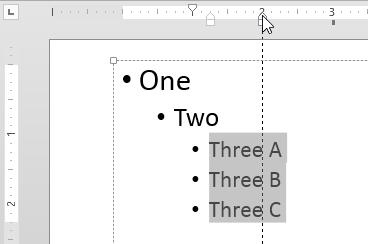
Have you wondered about how your paragraphs get positioned as a bulleted list within PowerPoint? How is the indenting space calculated, and how can you make changes that can alter those spaces? These changes are essentially influenced by three types of Indent Markers. Of the three Indent Markers you can see on the Ruler, the Hanging Indent Marker is used to tweak the position of the paragraph following the bullet.
Filed Under:
PowerPoint 2013
Tagged as: PowerPoint 2013, Text, Tutorials
Comments Off on Learn PowerPoint 2013 for Windows: Tweak Bulleted Lists With Hanging Indent Marker
Paper Planes represent aims, ambitions, goals and targets–and you can use these paper plane graphics in your slides to denote any such achievement. Most of the time, people just use arrows on their slides to highlight a certain area, but you can also use these paper planes instead–and you can also animate them to land right on target, exactly where you want them placed!

Download and use these paper plane graphics on your slides.
Filed Under:
Clip Media
Tagged as: Design, Graphics, PowerPoint, Presentation Samples
Comments Off on Paper Plane Graphics for PowerPoint
Custom Slide Shows, as indicated by their name itself, are Slide Shows customized by the user. The purpose of creating a Custom Slide Show is to display only selected slides from your presentation, without deleting the slides you do not want to show. To understand a Custom Slide Show, think of your individual slides as songs — then a Custom Slide Show is a playlist of those songs! Even better, since this is like a playlist, you do not have to delete the slides that are not used. And there’s more — you can create any number of Custom Slide Shows from a single presentation!

Learn how to create Custom Slide Shows in PowerPoint 2010 for Windows.
Filed Under:
PowerPoint 2010
Tagged as: Delivery, PowerPoint 2010, Tutorials
Comments Off on Learn PowerPoint 2010 for Windows: Creating Custom Slide Shows
Microsoft and the Office logo are trademarks or registered trademarks of Microsoft Corporation in the United States and/or other countries.