
This is the print version of this page. All content is copyright Indezine.com 2000-2026.
Thoughts and impressions of happenings in the world of PowerPoint and presentations, continuously updated since 2003.
See Also:
PowerPoint and Presenting Notes
PowerPoint and Presenting Glossary
In PowerPoint, Sections are not just for effective and easy management of your slides, but they can also let you quickly reorder large blocks of adjacent slides. All you got to do is to place all slides you want to reorder within a single Section, and then move that Section along with all the slides that it contains. In this tutorial we’ll show you how you can reorder Sections within PowerPoint 2013.

Learn how to reorder Sections in PowerPoint 2013 for Windows.
Filed Under:
PowerPoint 2013
Tagged as: PowerPoint 2013, Slide Management, Tutorials
Comments Off on Learn PowerPoint 2013 for Windows: Reordering Sections
The similarity between a Bar Chart and a Column Chart is that both display the same data using rectangular bars. The length of these bars is proportional to the data value. Also, both are used to compare two or more values. So what is the difference? The difference lies in their orientation — and henceforth the perspective with which we humans comprehend the data. A Bar Chart is oriented horizontally and a Column Chart is oriented vertically (see our Column or Bar Chart? tutorial). This small variance can make a lot of difference depending upon how large your chart data is, or how lengthy your Category Axis Labels are.

Filed Under:
Charts and Diagrams
Tagged as: Charting, PowerPoint, Tutorials
Comments Off on Longer Axis Labels: Why Bar Charts are Better than Column Charts?
Imagine this situation: you are working on a presentation with your client, or a co-worker — then, instead of working on the same copy one after the other, you worked on two different copies. These copies contain changes done by you both. Some changes may be similar and some may be different. Now you need to compare and merge these copies into a single, cohesive file without losing anything important!

Learn how to compare and merge presentations in PowerPoint 2011 for Mac.
Filed Under:
PowerPoint 2011
Tagged as: Office for Mac, PowerPoint 2011, Slide Management, Tutorials
Comments Off on Learn PowerPoint 2011 for Mac: Comparing and Merging Presentations

David Tang is the founder of Flevy, a marketplace for premium business documents. Prior to Flevy, David worked as a management consultant for 8 years. His consulting experience spans corporate strategy, marketing, operations, and change management — both domestic and international (EMEA + APAC). David graduated from Cornell University with a Bachelor’s and Master’s in engineering.
In this conversation, David discusses Flevy Tools, an add-in for PowerPoint that creates several chart and diagram types.
Geetesh: What motivated you to create Flevy Tools, an entirely free add-in for PowerPoint that provides so many chart and diagram types?
David: When we first launched our company Flevy, we decided to create and give away Flevy Tools, as a way to reach PowerPoint business users. At the time, Flevy Tools only provided 4 diagram types. Over time, Flevy Tools became increasingly popular and we released more and more diagrams types. The latest version released in March 2015 contains 12 diagram types, including such common business diagrams as Gantt charts, waterfall charts, and pyramids. We have even received testimonials from management consultants at Accenture and Capgemini stating Flevy Tools is better than their in-house PowerPoint diagramming tools.
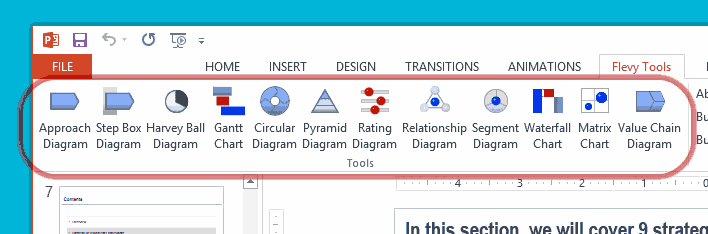
To provide some context, our company Flevy is a marketplace for high quality business documents. Most of our documents are PowerPoints, ranging from business training guides to presentation templates. This is why we thought Flevy Tools would appeal to our audience.
Geetesh: Can you tell us about the new Matrix Charts and Value Chain Diagrams, introduced in the newest release of Flevy Tools?
David: Certainly. Matrix Charts are very simple, intuitive visuals. They typically take the form of 2×2 or 3×3 matrices. There are many established management models represented by the Matrix Chart, such as the BCG Matrix and GE-McKinsey Matrix. Using Flevy Tools, you can create Matrix Charts of up to 5×5 size (e.g. 2×3, 4×4, 1×5, etc.).

Our Value Chain Diagram is modeled after the Porter Value Chain, introduced by strategist Michael Porter. A Value Chain Diagram is essentially a multi-layered Chevron Diagram. Using Flevy Tools, you can create Value Chain Diagrams of up to 6 chevrons (on the top level). Each top-level chevron can then be sub-divided into up to 6 parallel streams.

The views and opinions expressed in this blog post or content are those of the authors or the interviewees and do not necessarily reflect the official policy or position of any other agency, organization, employer, or company.
Filed Under:
Interviews
Tagged as: Add-in, Flevy, Interviews, PowerPoint
Comments Off on Flevy Tools: Conversation with David Tang
We have explored how you can apply or change bulleted paragraphs within your text objects — by default, the actual bullet character is always placed before the paragraph that follows it. Also, there is no absolute position of any bullet character you see on your slides — the bullet character’s position is always influenced by 4 factors that we explain.

Learn about the Indent Markers (Carets) in PowerPoint 2013 for Windows.
Filed Under:
PowerPoint 2013
Tagged as: PowerPoint 2013, Text, Tutorials
Comments Off on Learn PowerPoint 2013 for Windows: Indent Markers (Carets) for Bulleted and Numbered Lists
Microsoft and the Office logo are trademarks or registered trademarks of Microsoft Corporation in the United States and/or other countries.