
This is the print version of this page. All content is copyright Indezine.com 2000-2026.
Thoughts and impressions of happenings in the world of PowerPoint and presentations, continuously updated since 2003.
See Also:
PowerPoint and Presenting Notes
PowerPoint and Presenting Glossary

The afternoon keynote session at the Presentation Summit on Monday (October 13, 2014) was delivered by Jim Endicott.
Jim started by saying he was going to share presenting ideas that attendees could use straightaway. He asked the audience to suggest some presentation scenarios, and the audience responded by providing scenarios such as product launches, board room meetings, and courtroom presentations.
Jim then said that with all sorts of presentation scenarios, what does not change is that audiences are terribly distracted and/or so busy these days. These audiences could be all over the world, and yes, this world is not full of horrible presenters. But the world is indeed full of average presenters with average slides that contain average messages. These average content types are forgotten very fast, especially as audiences see so much through the course of just one single day at work.
Jim asked everyone to imagine that they had just delivered that amazing presentation, and then just before the audience leaves, what perception would your audience take about you? The audience responded by saying electric, knowledgeable, interesting, persuasive, unique, and passionate. About “passionate”, Jim mentioned that it was one skill that overpowers everything else—if the speaker is passionate enough, audiences may forgive other shortcomings.
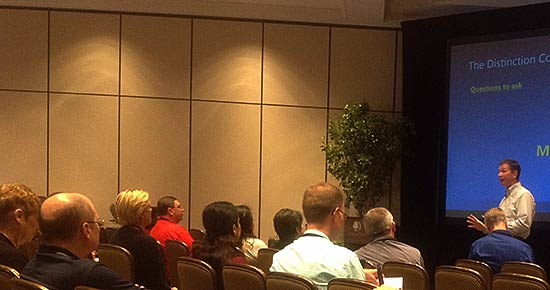
Next, Jim explained three different concepts that will help you get heard better these days. Two of these are What concepts whereas the last one pertains to How:
90% of the time people spend in a presentation is gone with presenters occupied with What concepts. It’s the remaining time that actually involves the How concept that is important. Jim discussed a recent event in which an important presentation was delivered with no How concepts. It was unfortunate was that an otherwise great script was thus rendered useless.
Jim then said, People are not looking for perfect presenters. They are looking for people they can relate to.
Jim then called for some volunteers to do the coaching part of his keynote session, and we will learn more about these volunteers later in this post.
Jim then put up a slide that served as an anchor for the rest of his session:
| Questions to ask | Faculties | Goal to achieve |
|---|---|---|
| How long? | Eyes | 3-5 sec.”conversations” |
| Stuck? | Hands | Meaningful gestures |
| Any? | Movement | Natural and purposeful |
| Missing punctuation? | Voice | Pause, pace, variety “chunking” |
Jim then discussed Malcolm Gladwell’s book Blink, in which Malcolm discusses “Thin Slicing”, which is based on findings from Nalini Ambady Research. He thereafter showed a video called Ricky Bobby (Talladega Nights) — Everybody struggles with their hands. This video showed very exaggerated hand movements!
Jim then started with the pre-coaching part of his keynote by discussing foundation skills that forge first impressions. He suggested presenters start with posture.
Start with a strong ready position. It is important not to droop. Next, you can use some great gestures with your hands. Then affirm that you are not intimidated by the room, step forward, and you will look über-content.
Jim also advised striving for visual engagement by stepping forward to connect confidently. He suggested retaining a good neutral position thereafter, to appear relaxed and comfortable.
Bringing up the science of confidence, Jim referred to Amy Cuddy and her TED session. He talked about her ideas about high and low power poses.
Jim suggested, So open up yourself more rather than closing in for your posture. This will change your biochemical levels and make you more confident.
Then the coaching exercise began. Two volunteers, Steve and Sue took part. Jim made Steve hold two small dumbbells so that his hands did not move. Steve then stepped forward, and then without moving the hands too much, talked to individual people 3-5 seconds at a time. This made Steve appear confident. Then Sue did the same.
Jim took the audience to the next level and asked them to explore gestures. He asked to make gestures bigger, larger, and make them linger just a little longer, so as to not move too fast. He also suggested that everyone create their own gesture library.
Some emotions for which everyone needs to create a gesture in their own personal library include:
Jim then discussed voice, and how speakers can use their voice better. He introduced voice-chunking. This actually means dividing your speech with pauses. Here’s an example:
Jim mentioned that such voice-chunking was helpful even for speakers whose first language was not English.
Jim then discussed establishing trust and believability, If people don’t trust you, they will not act upon what you say.
Working upon eye communication is very critical. Jim asked the audience to look at Jane McGonigal’s TED Talk and notice her eye contact skills. Variations in eye contact are important.
Jim asked presenters to create anchors in the audience. Imagine their hands are up. Then, move from one imaginary hand to another imaginary hand and talk to them as part of talking to the entire audience. Walk on the stage when you move from one anchor to another. Jim made the volunteers use these skills. He then played the volunteer’s performances on video without sound exploring their gesture libraries, movement, eye contact, etc.
Jim ended his keynote with an important thought, Don’t run away from this process because you are going to do this all your life. So do the hard thing. When everyone is running away from this task, you run towards it.
The views and opinions expressed in this blog post or content are those of the authors or the interviewees and do not necessarily reflect the official policy or position of any other agency, organization, employer, or company.
Filed Under:
Events
Tagged as: Jim Endicott, PowerPoint, Presentation Summit
Comments Off on Jim Endicott at the Presentation Summit 2014
We have already shown you how you can apply picture fills as slide backgrounds — all the picture format options which can be applied on a picture also works for a picture background. Unfortunately, once you apply Office 2013’s Service Pack 1, many of the picture format options for picture backgrounds stop working. Until future updates restore the options back, you can follow the workaround explained on this page — all within PowerPoint 2013.

Explore a workaround for pictures backgrounds in PowerPoint 2013 for Windows.
Filed Under:
PowerPoint 2013
Tagged as: Pictures, PowerPoint 2013, Tutorials
Comments Off on Learn PowerPoint 2013 from Windows: Workaround for Picture Backgrounds
We bring you another awesome series of animated gears that you can just place within your slides, if that’s all you need. Want to do more? Then we’ve made that easy for you too. PowerPoint 2013 users can learn more from a bunch Pictures and Visuals (Graphics) tutorials.

Read Indezine’s PowerPoint and Presenting News.
Filed Under:
Ezine
Tagged as: Ezine, Indezine, News, PowerPoint
Comments Off on PowerPoint and Presenting News: November 4, 2014
Although using pictures enhances the look of your presentation, it can also phenomenally increase the size of your presentation file. By default, PowerPoint simply copies your inserted pictures into your presentation leaving the size and format largely unchanged. The Compress feature for pictures offers an image compression utility that reduces the size of all inserted pictures in the presentation in a single step.
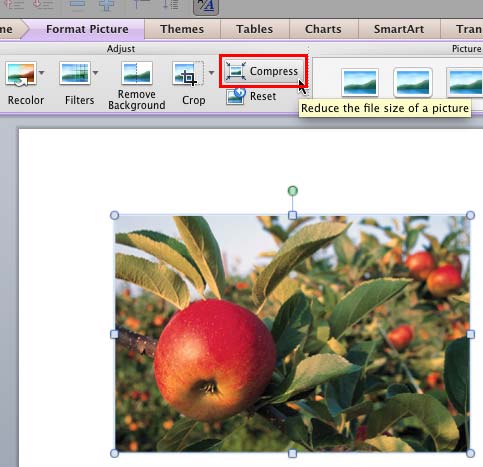
Learn how to compress pictures in PowerPoint 2011 for Mac.
Filed Under:
PowerPoint 2011
Tagged as: Office for Mac, Pictures, PowerPoint 2011, Tutorials
Comments Off on Learn PowerPoint 2011 for Mac: Compress Pictures
Any manipulations you make to inserted pictures in PowerPoint are strictly only on the surface. The appearance of the picture changes on the slide, but the unaltered picture is still there within your PowerPoint file. Essentially that’s good because if you make many changes to a picture and then regret experimenting, you can just reset your picture rather than deleting and inserting it again!

Learn how to reset pictures in PowerPoint 2011 for Mac.
Filed Under:
PowerPoint 2011
Tagged as: Office for Mac, Pictures, PowerPoint 2011, Tutorials
Comments Off on Learn PowerPoint 2011 for Mac: Reset Pictures
Microsoft and the Office logo are trademarks or registered trademarks of Microsoft Corporation in the United States and/or other countries.